Best AI Video Enhancers to Enhance Video Quality
Compare top AI video enhancers for quality upgrades. Find options for beginners to pros. Click to choose the best fit for your needs!
AI video enhancers can transform ordinary footage into sharp, vibrant, and professional-looking videos in just minutes. Upload a clip, apply a preset or adjustment, and suddenly even a shaky or low-resolution video feels polished and ready for an audience. That convenience has made these tools a must-have for creators, marketers, and small teams looking to improve video quality fast.
But the next clip doesn’t always behave the same way, which is where many AI video enhancers start to show their limitations. Colors may shift, details may soften, or noise reduction can leave parts of the image looking unnatural. A video that looked crisp a moment ago might now feel inconsistent or over-processed. Instead of just improving footage, you find yourself tweaking settings repeatedly to get a uniform look across multiple clips.
To get the best results, creators combine AI enhancement with thoughtful editing. They define target quality, maintain consistent styles, and sometimes use batch processing to keep all clips visually aligned.
This guide will explore the top AI video enhancers of 2026, breaking down how each performs and the types of projects they’re best suited for, so you can choose the right tool for your workflow.
Quick Overview
- Creators rely on AI video enhancers to boost quality, clarity, and consistency across multiple clips and formats
- Speed alone is not enough the best tools balance automation with control, preserving visual style and color accuracy
- Different enhancers serve distinct needs, some focus on fast social content while others specialize in archival restoration or cinematic-grade refinement
- Batch processing and sequence-based workflows are increasingly important for campaigns, multi-video series, and high-volume content production
- Choosing the right tool depends on priorities, whether it is quick fixes, detailed enhancement, editing, integration, or multi-platform readiness
Why AI Video Enhancers Make a Difference in 2026?
Viewers expect sharp visuals, smooth motion, and consistent quality, whether they are watching a short clip or a full-length video. This is where AI video enhancers become essential, helping creators maintain quality while keeping up with demand.
Here’s why these tools are important:
- Consistency Across Versions: A single enhanced video should look equally polished in vertical formats for short videos and horizontal formats for longer content. Colors, sharpness, and motion stay uniform across all versions.
- Speed Without Losing Quality: AI speeds up tasks like upscaling, noise reduction, and frame smoothing, while keeping visuals natural. A low-light clip can be cleaned and sharpened quickly without losing detail.
- Less Manual Effort: Instead of adjusting every frame, creators can apply settings across the entire video. Sharpness, motion, and color can be refined through simple controls, with quick previews before final output.
- Reliable Output Every Time: Strong tools deliver consistent results across different projects. A travel vlog, product video, or short reel can all maintain stable quality without repeated corrections.
- Built for Regular Content Creation: For creators producing videos frequently, these tools handle multiple formats and resolutions smoothly. A single clip can be prepared for different platforms without starting from scratch each time.
A top AI video enhancer does more than improve visuals. It helps maintain consistency, reduces effort, and supports faster content creation while keeping quality intact.
AI Video Enhancers vs AI Video Editors vs AI Video Generators: Key Differences
Not all AI video tools serve the same purpose. Some improve quality, others help structure content, and some create videos entirely from scratch. Knowing where each tool fits makes it easier to choose the right one for your workflow.
The table below breaks down the key differences:
Aspect | AI Video Enhancers | AI Video Editors | AI Video Generators |
Primary Purpose | Improve the quality of existing videos | Arrange and refine video content | Create videos from scratch |
Input Required | Existing video footage | Raw clips, footage, or scenes | Text prompts or scripts |
Core Function | Enhances visuals like sharpness, color, and motion | Cuts, trims, and structures the video | Generates scenes, visuals, and sequences |
Best Use Case | Fixing low-quality or inconsistent footage | Building a complete, edited video | Producing videos without filming |
Level of Control | Limited to quality adjustments | High control over edits and timeline | Moderate control through prompts |
Speed of Output | Very fast, with minimal input needed | Moderate, depending on editing complexity | Fast, but depends on generation accuracy |
Skill Requirement | Beginner-friendly | Requires editing knowledge | Beginner to intermediate |
Example Outcome | A blurry video becomes sharp and smooth | Multiple clips turn into a polished story | A script turns into a full video |
A well-structured workflow uses each of these tools at the right stage. Enhancers improve quality, editors shape the story, and generators help bring new ideas to life together creating a faster and more efficient video production process.
Also Read: Future of Content Creation: 2026 Trends & Predictions
8 Best AI Video Enhancers to Use in 2026
Today, enhancement is not a final step. It is integrated into the way videos are produced, edited, and prepared for publishing. Whether it is cleaning low-light footage, improving motion clarity, or standardizing visuals across a campaign, creators rely on tools that deliver predictable results at scale.
Below are the AI video enhancers that creators actually use today, based on output quality, control, workflow fit, and how well they support real production needs rather than one-time fixes.
1. Frameo
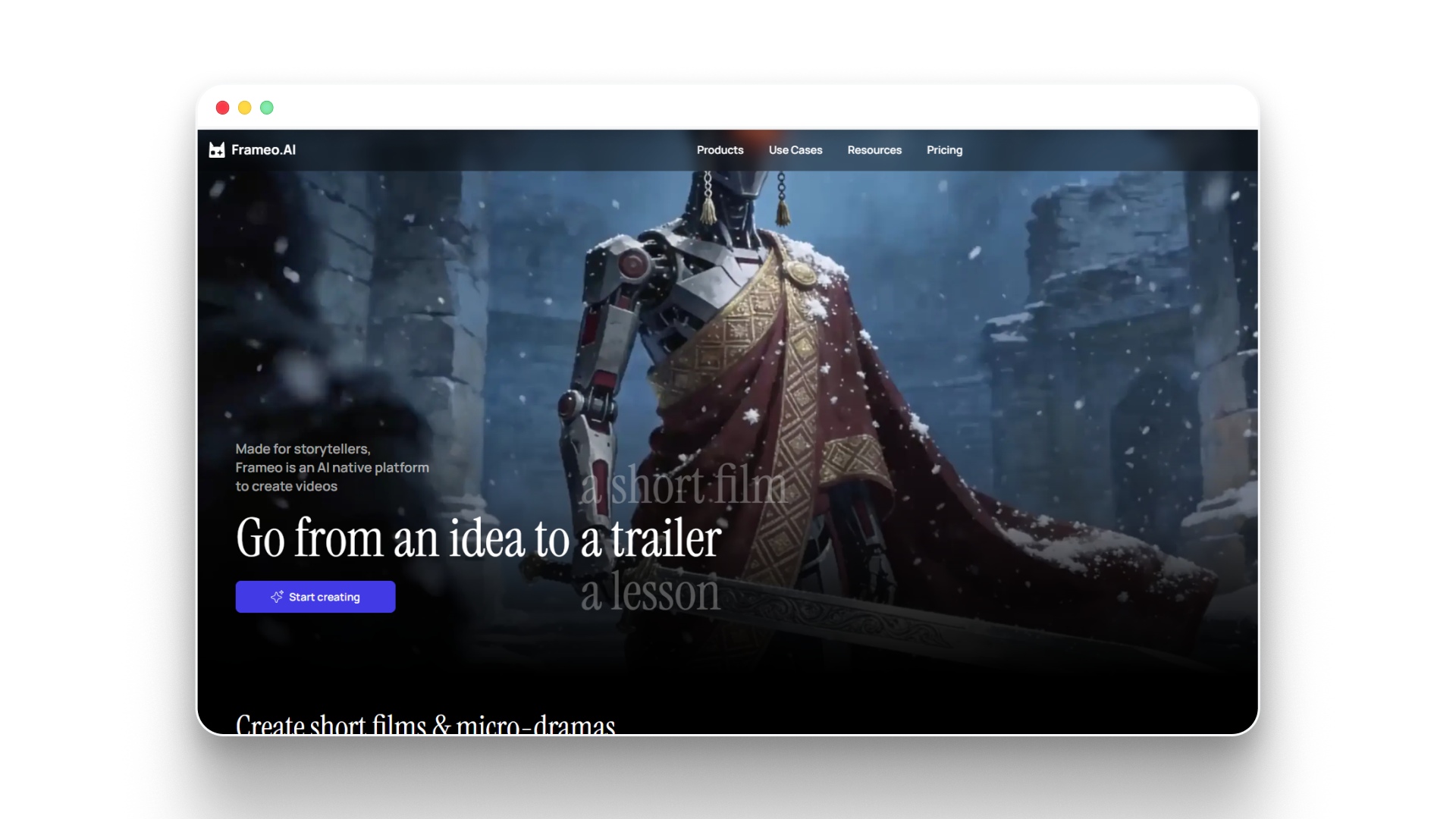
Frameo is not a traditional video enhancer; it is a full AI video creation platform that includes enhancement as part of a structured production workflow. Instead of improving clips one by one, it allows creators to enhance entire video sequences while maintaining visual consistency across every scene. That difference matters in 2026, where content is produced in batches and inconsistent quality can directly impact engagement and performance.
At its core, Frameo treats video enhancement as part of the production workflow rather than a final touch. Creators start with planned sequences, then apply improvements such as clarity, motion smoothing, and noise reduction while keeping every clip aligned. The result is footage that feels cohesive, polished, and ready for publishing at scale.
Why are creators choosing Frameo in 2026?
- Sequence-based enhancement workflows: Frameo applies improvements across connected scenes instead of isolated clips, ensuring videos feel consistent when stitched together. This is especially useful for reels, tutorials, and multi-part content.
- Batch consistency across content: Creators producing daily posts or campaign series can maintain the same visual quality across multiple videos without manually adjusting each file.
- Improved motion clarity in fast-paced content: Quick cuts, transitions, and movement-heavy clips are smoothed out, making videos easier to watch and more professional in appearance.
- Reusable enhancement settings: Instead of reconfiguring edits every time, creators can define settings once and apply them across full sequences, saving time in high-volume workflows.
- Natural-looking quality improvements: Enhancements focus on clarity and balance without making footage look overly processed, which helps maintain authenticity across content.
Core Video Creation Tools Inside Frameo
- Script to Video Maker: Convert full scripts into scene-based videos without timelines or manual editing.
- Story to Video Maker: Turn story outlines or narrative prompts into ordered visual sequences.
- Video Clip Generator: Create short clips from longer scripts or concepts for ads, reels, and social use.
- Voiceover for Video: Add narration synced to scene timing and visual flow.
- AI Voice Generator (Video-ready): Generate voice tracks designed to match the pacing and tone of video scenes.
Where Frameo fits best
- Short-form content like reels and shorts
- Campaign and multi-video content series
- Tutorials and repeatable video formats
- High-volume content production workflows
Trade-offs to know
- Less focused on deep restoration of heavily damaged or archival footage
- Not designed for highly experimental or stylized visual effects
Frameo stands out in 2026 because it treats enhancement as a structured workflow, not a one-time fix. For creators who need consistent, scalable output across multiple videos, it functions more like a production system than a simple enhancement tool.
2. Topaz Video AI
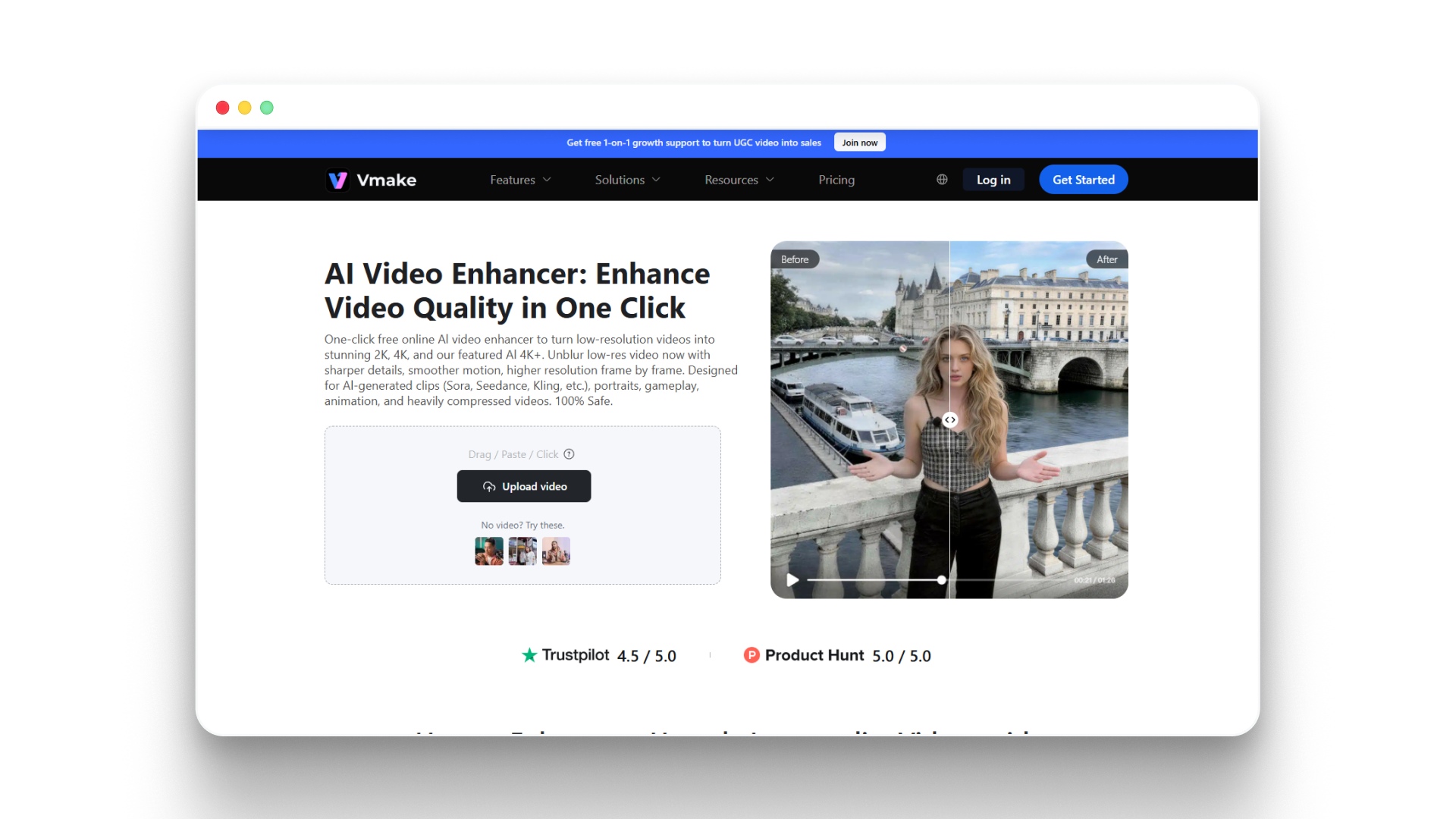
Free AI Video Enhancer: Enhance Videos Online Instantly | Vmake AI
Topaz Video AI is built for creators who prioritize maximum visual quality and detailed enhancement over speed. Instead of applying surface-level improvements, it focuses on deeply refining footage making it sharper, clearer, and closer to high-resolution output even when the original quality is poor.
In 2026, this makes it a go-to choice for professionals working with older clips, low-resolution videos, or projects that demand cinematic-grade results. Rather than optimizing for fast content workflows, Topaz is designed for situations where every detail matters and output quality cannot be compromised.
Where Topaz performs well:
- High-quality upscaling with detail preservation: Topaz increases video resolution while maintaining fine textures, edges, and visual depth, making older or compressed footage look significantly sharper on modern screens.
- Advanced motion enhancement: It improves frame transitions in slow, choppy, or low-frame-rate clips, resulting in smoother playback that feels more natural and refined.
- Facial and detail recovery: Small elements like faces, text, and background details that are unclear in the original footage are enhanced to appear more defined and readable.
- Restoration-focused processing: It works particularly well for reviving degraded or archival footage where clarity, noise reduction, and reconstruction are required together.
Limitations creators often encounter:
- High system requirements: Optimal performance depends on strong GPU support, which may not be accessible for all users.
- Slower processing times: Compared to lightweight or cloud-based tools, rendering and enhancement can take longer, especially for large files or high-resolution outputs.
- Not built for batch-first workflows: It is less suited for creators producing large volumes of short-form content that require quick turnaround.
How creators typically use Topaz Video AI
- Restoring old or archival footage for modern viewing
- Enhancing low-resolution clips for professional use
- Preparing high-quality visuals for films, documentaries, or premium content
- Refining footage as part of advanced editing workflows
Topaz Video AI works best when quality matters more than speed. For creators who need precise, high-end enhancement and are willing to invest time and computing power, it delivers results that lightweight tools cannot easily match.
3. WaveSpeedAI
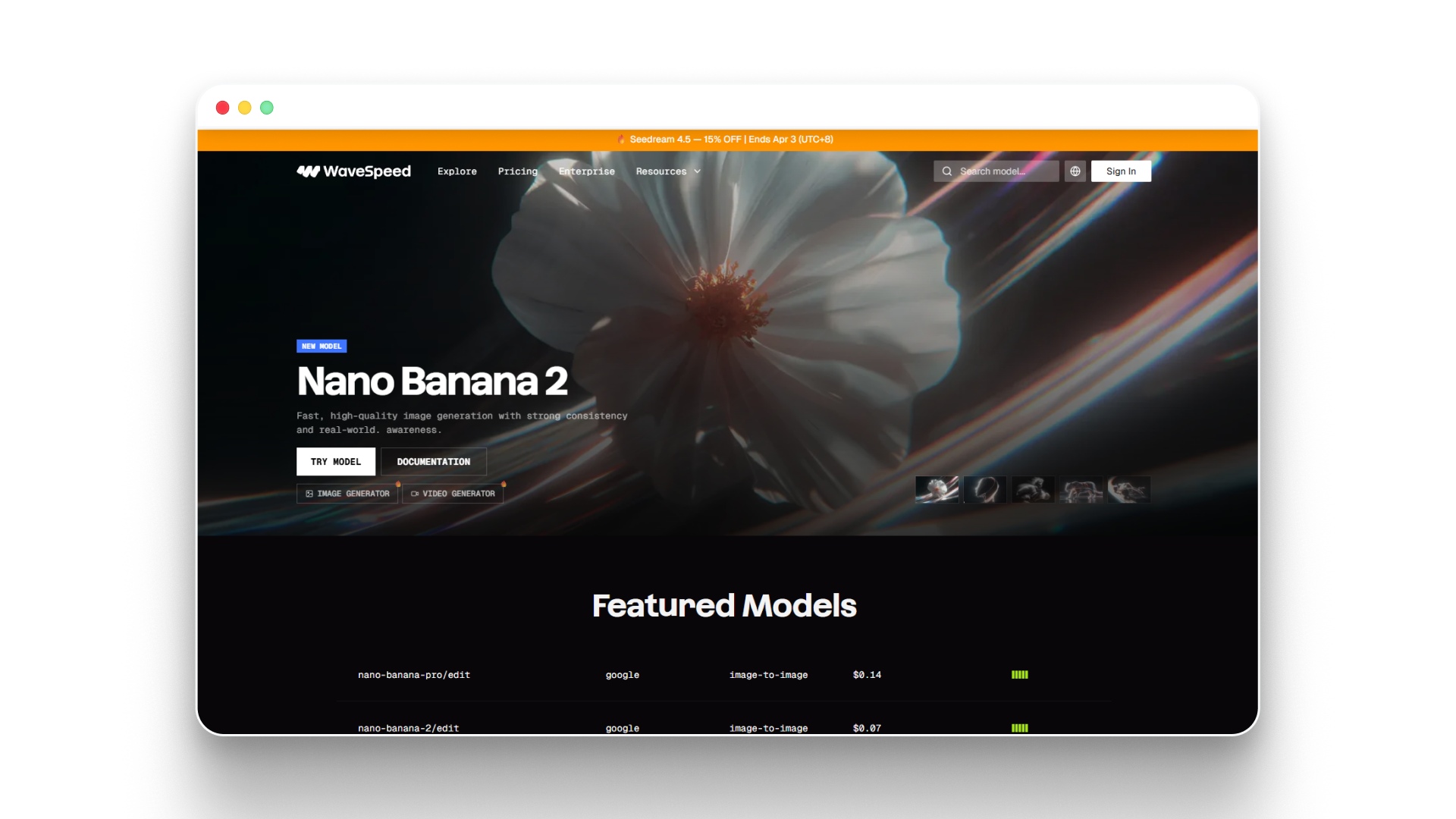
Ultimate Platform for Accelerating AI Image and Video Generation - WaveSpeedAI
WaveSpeedAI is an AI video enhancement platform built to process large volumes of content quickly and efficiently. Instead of focusing on individual edits or creative control, it is designed to automate enhancement across multiple videos at once, making it useful for systems that handle continuous video output.
Creators and teams often approach WaveSpeedAI as an infrastructure tool rather than a creative one. It works best in environments where videos need to be processed in bulk, such as platforms, apps, or content pipelines, where speed and consistency matter more than manual adjustments.
Where WaveSpeedAI performs well:
- Bulk video processing at scale: WaveSpeedAI can handle large batches of videos in a single workflow, reducing the need for manual editing.
- Seamless API integration: It connects directly with platforms and applications, allowing videos to be enhanced automatically during upload or processing.
- Consistent output quality: Videos are enhanced using the same settings, ensuring uniform quality across large libraries or datasets.
- Optimized for automated workflows: It fits into systems where videos move from creation to publishing without manual intervention.
- Efficiency in high-volume environments: It reduces time and effort for teams managing large amounts of content.
Common limitations in creator workflows:
- Limited control over individual videos: Creators cannot fine-tune specific clips or apply unique adjustments.
- Requires technical setup: Full functionality often depends on API integration, which may require developer support.
- Not built for creative editing: It does not support storytelling, visual experimentation, or stylistic changes.
- Less useful for small-scale creators: Individuals working on a few videos may not benefit from its automation-focused design.
How creators and teams typically use WaveSpeedAI:
- SaaS platforms and video-based applications
- Automated content pipelines
- Bulk media processing systems
- User-generated content platforms
WaveSpeedAI works best when speed, consistency, and scale are the priority. It helps teams process large volumes of video efficiently, but creators who need detailed control or creative flexibility usually rely on other tools alongside it.
4. HitPaw Video Enhancer
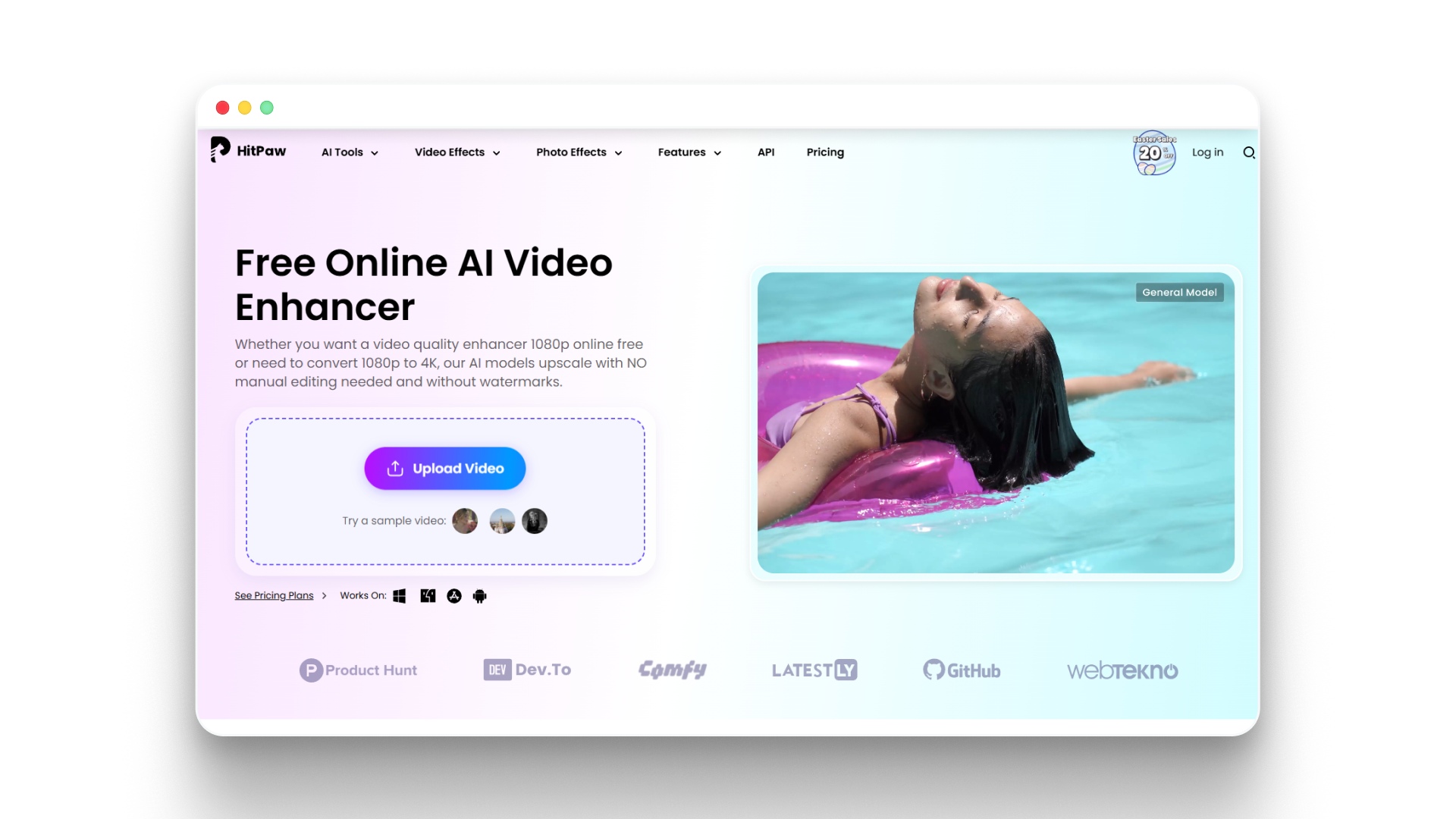
4K Video Enhancer Online Free – Enhance Any Video with HitPaw
HitPaw Video Enhancer is a tool built for simplicity and fast results. It is designed for creators who want to improve the quality of their videos quickly, without spending time on complex settings or detailed editing. Instead of providing a full suite of manual controls, HitPaw focuses on speed and accessibility, making it ideal for people who need to enhance clips before posting them online or sharing with others.
Creators often turn to HitPaw when they need a fast solution for low-quality footage. It works well for social media posts, personal projects, and short clips where ease of use is more important than advanced visual effects.
Where HitPaw performs well
- Quick video improvements: HitPaw can instantly enhance video clarity, color balance, and sharpness with just a few clicks, making it suitable for creators who want fast fixes.
- Short clips and casual content: The tool is especially useful for single-shot videos or short sequences that need minor enhancements before being shared online.
- Beginner-friendly interface: The layout is intuitive and simple to navigate, so even users with no video editing experience can use it effectively.
- Fast processing: Videos are improved quickly, which helps creators maintain a steady flow of content without long delays.
- Minimal learning curve: Users do not need to understand complex editing concepts to get results.
Limitations creators often face
- Limited customization: HitPaw does not offer detailed control over adjustments, so users cannot fine-tune specific elements like motion, noise, or color grading.
- Not suitable for multi-scene projects: It works best with single clips and simple videos, not complex sequences or multi-scene productions.
- Basic visual effects only: The tool focuses on general enhancement rather than advanced visual storytelling or cinematic effects.
- Not for professional workflows: Creators looking for high-end quality, narrative control, or batch processing may find it insufficient for their needs.
Where it fits best
- Quick social media edits
- Personal or casual videos
- Simple quality enhancements
- Content that needs a fast turnaround before publishing
HitPaw Video Enhancer works best when speed and convenience are the top priorities. It is ideal for creators who need a simple solution to improve video quality without spending time learning complicated tools or settings.
5. AVCLabs Video Enhancer AI
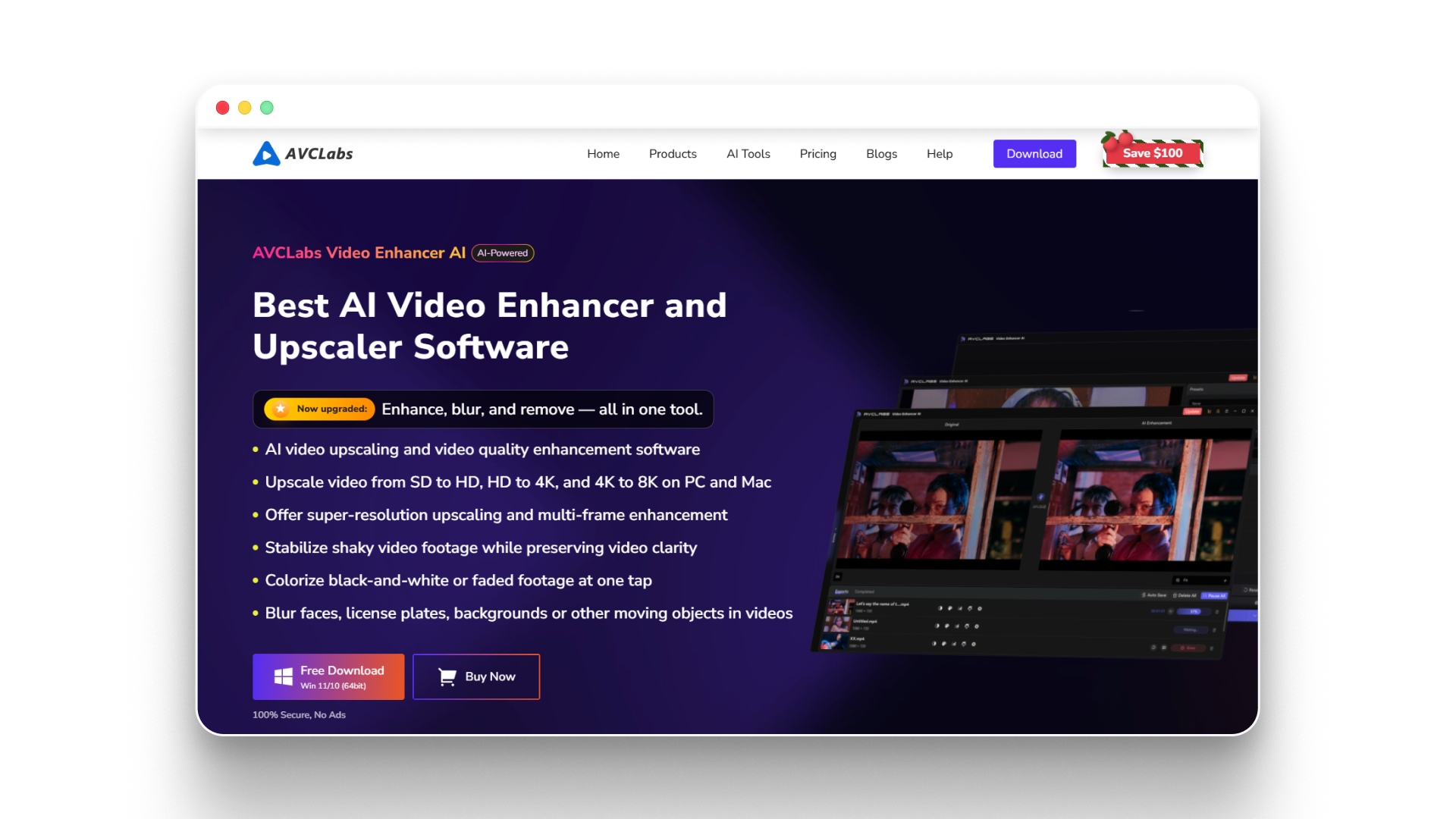
Video Enhancer AI: Improve Video Quality and Upscale to 8K | AVCLabs
AVCLabs Video Enhancer AI is built to provide a balance between automation and hands-on control. It is ideal for projects where footage comes from different sources or has varying quality, because it can make all clips look more consistent. Unlike tools that focus only on speed or one-click fixes, AVCLabs allows users to enhance multiple types of videos in the same project while keeping the option to tweak settings manually.
It works especially well for combining older clips with new ones, restoring faded colors, and balancing visuals across different resolutions. The platform ensures consistent improvements across all footage, giving a polished and uniform look to the entire project.
Where AVCLabs performs well:
- Improving mixed-quality clips: AVCLabs can enhance videos from different sources, making all clips look more uniform.
- Color and brightness fixes: It corrects color balance, restores washed-out footage, and makes older videos look fresher.
- Easy-to-use presets: The tool offers ready-made settings that can be applied across multiple clips, saving time on repetitive adjustments.
- Flexible automation: Users can let the tool automatically improve videos or make manual tweaks when more control is needed.
- Video cleanup tools: It can reduce noise, sharpen blurry footage, and stabilize shaky clips to make videos look cleaner and smoother.
Common limitations creators face:
- Takes time to learn: While easy to use, some features and presets still require practice to get the best results.
- Performance depends on your system: Speed and processing quality rely on your computer or hardware. Older systems may be slower.
- Not for creative effects: AVCLabs focuses on improving existing footage, not adding new styles or visual effects.
- Limited batch processing: It can handle multiple clips, but it is not built for extremely high-volume, fully automatic workflows.
Where it fits best
- Restoring old videos
- Enhancing projects with clips of different quality
- Cleaning up general video issues
- Making all clips in a project look consistent
AVCLabs Video Enhancer AI works best for creators who need both speed and control. It is ideal for projects with mixed footage, older content that needs restoring, or when consistency across videos matters. It helps improve the look of videos while still letting creators decide how much control they want over the process.
6. PowerDirector
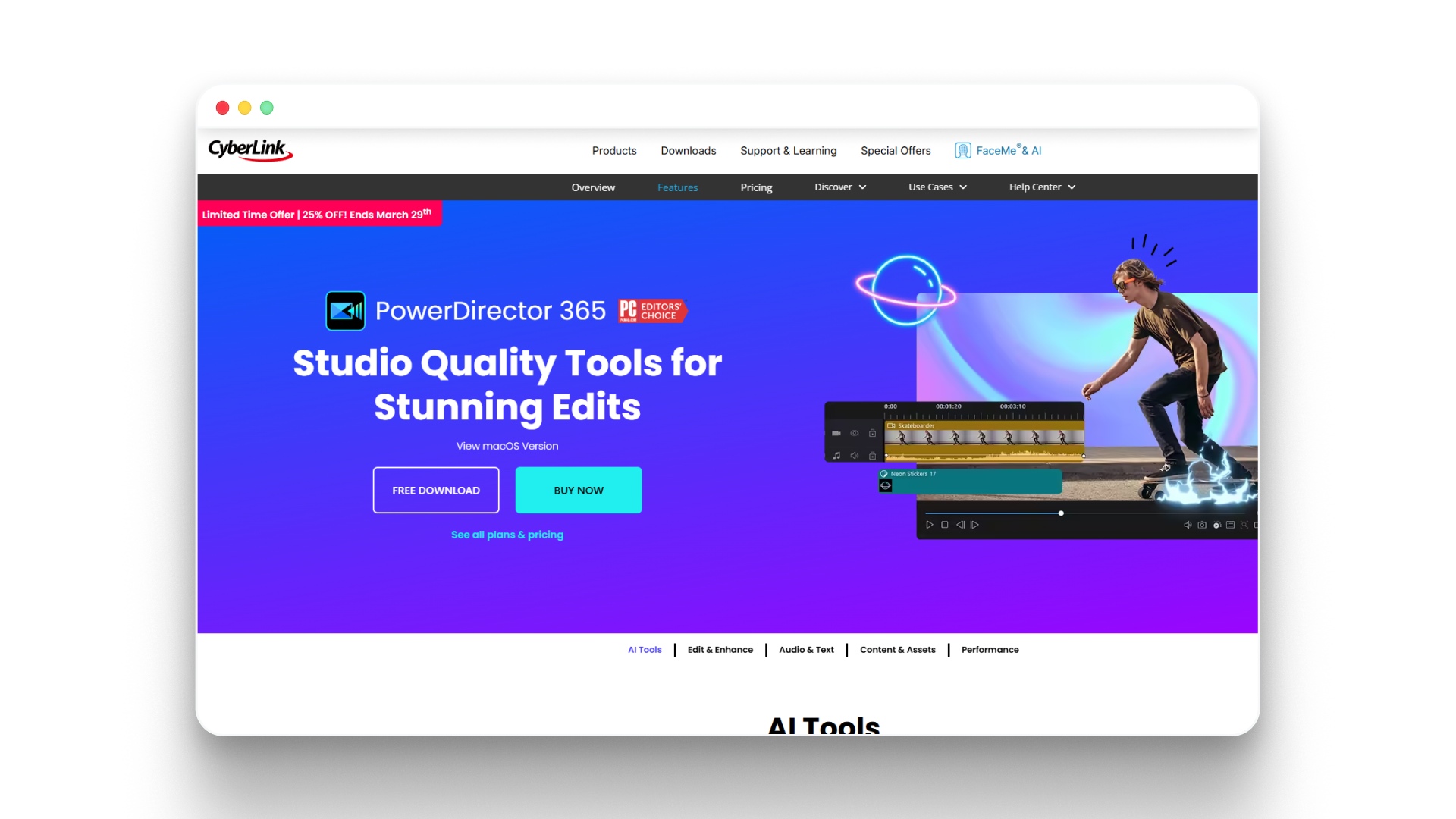
PowerDirector - AI Video Editing Software with Creative Tools
PowerDirector is a video editing platform that combines both editing and enhancement tools within a single workflow. Instead of moving between separate software for editing and improving video quality, users can handle everything in one project.
This makes it a convenient choice for creators who want a unified environment for both creative adjustments and technical improvements.
Where PowerDirector performs well:
- All-in-one editing and enhancement: Users can cut, trim, and arrange clips while simultaneously improving clarity, motion, and stability. This reduces the need to juggle multiple tools.
- Advanced visual tools: PowerDirector includes features like motion smoothing, stabilization, and color correction to enhance video quality effectively.
- User-friendly with depth: While it offers advanced options for experienced editors, its interface is approachable enough for beginners to start improving videos quickly.
Limitations creators often encounter:
- Not as specialized: Compared to dedicated video enhancement tools, some features may be less precise or lack the depth of professional software.
- Paid features: Certain advanced tools and effects require a subscription or one-time purchase.
- Steeper learning curve for complex projects: While beginner-friendly, mastering all the advanced editing and enhancement features can take time.
How creators typically use PowerDirector:
- Editing and polishing full-length videos for YouTube or other platforms
- Multi-step video projects that require both cutting and visual enhancement
- Content workflows where speed and convenience matter alongside quality
- Projects that combine raw footage from different sources, needing consistent improvement
PowerDirector works best for creators who want a single platform for both video editing and enhancement. It is ideal for projects where managing everything in one environment saves time while still allowing for professional-quality improvements.
7. CapCut
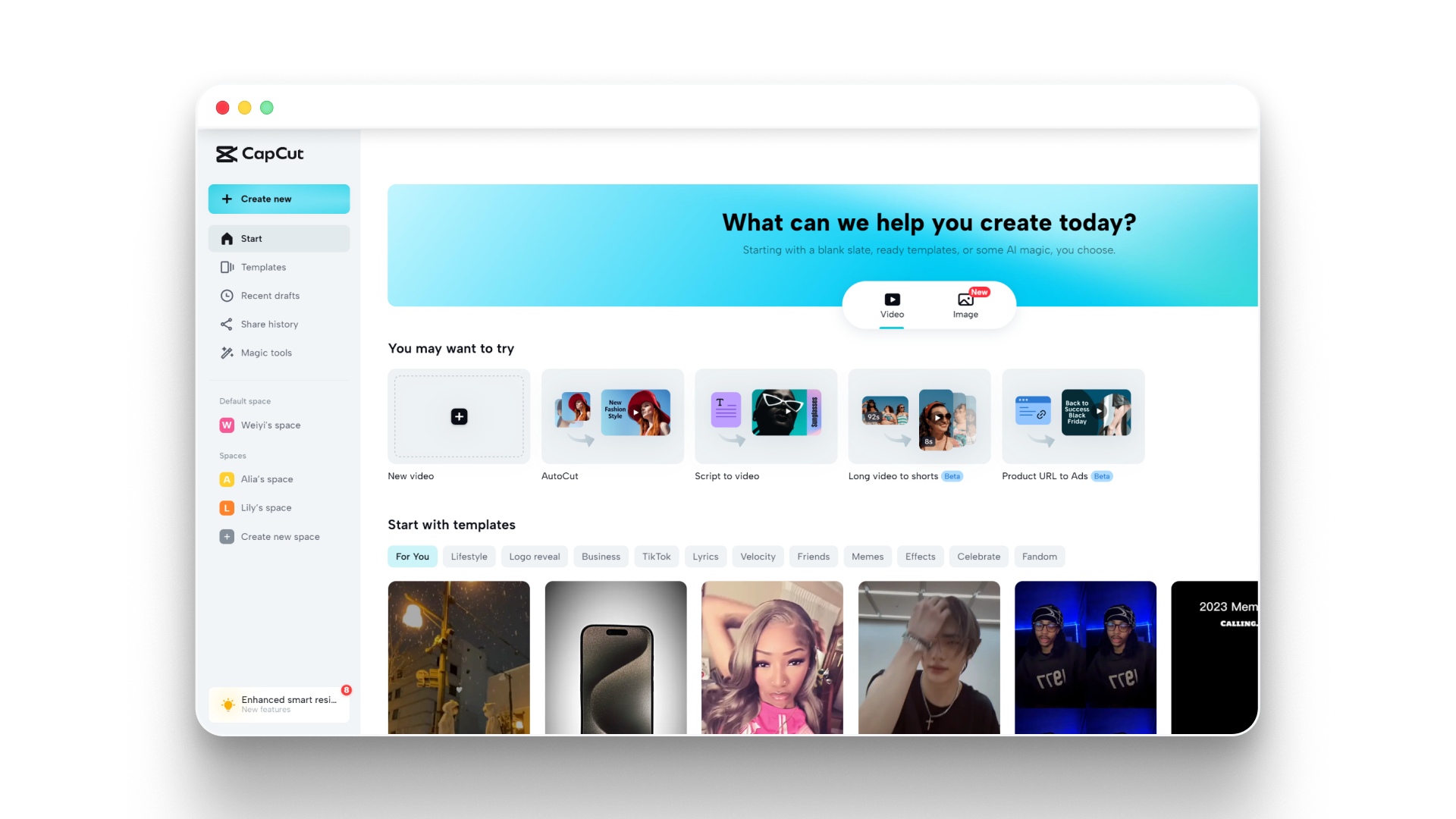
CapCut is a video editing and enhancement platform designed for speed and ease of use, especially for short-form content. It is widely chosen by creators who need to quickly improve their clips and get them ready for social media.
Instead of spending hours on detailed editing, CapCut allows users to enhance, trim, and format videos within minutes, making it ideal for fast-paced content creation.
Where CapCut performs well:
- Quick video enhancement: CapCut offers built-in tools to improve brightness, contrast, and clarity instantly, helping short clips look polished in a short time.
- Social media optimization: Editing for vertical formats, adding filters, and overlaying text or stickers is straightforward, making it easier to prepare content for Reels, Shorts, and TikTok.
- Cross-platform accessibility: CapCut works on both mobile devices and desktop computers, allowing creators to edit on the go or from a more traditional workstation.
Common limitations in creator workflows:
- Limited advanced control: Users cannot fine-tune every detail or perform high-end color grading and motion correction like in professional editors.
- Not suited for long-form projects: CapCut is optimized for short clips and quick edits, making it less effective for films, multi-scene projects, or complex narratives.
- Template-bound creativity: While simple to use, its reliance on presets can limit flexibility for more experimental or unique edits.
How creators typically use CapCut:
- Producing Reels, TikTok videos, and other short-form content
- Quickly trimming, enhancing, and formatting clips for social sharing
- Adding captions, stickers, and music for fast audience engagement
- Editing casual or personal content with minimal setup
CapCut works best when speed, simplicity, and convenience are the priority. It is ideal for creators who need fast, polished output for short videos without spending much time on detailed editing or professional-level adjustments.
Also Read: How to Create an AI Character Video
8. VideoProc Converter AI
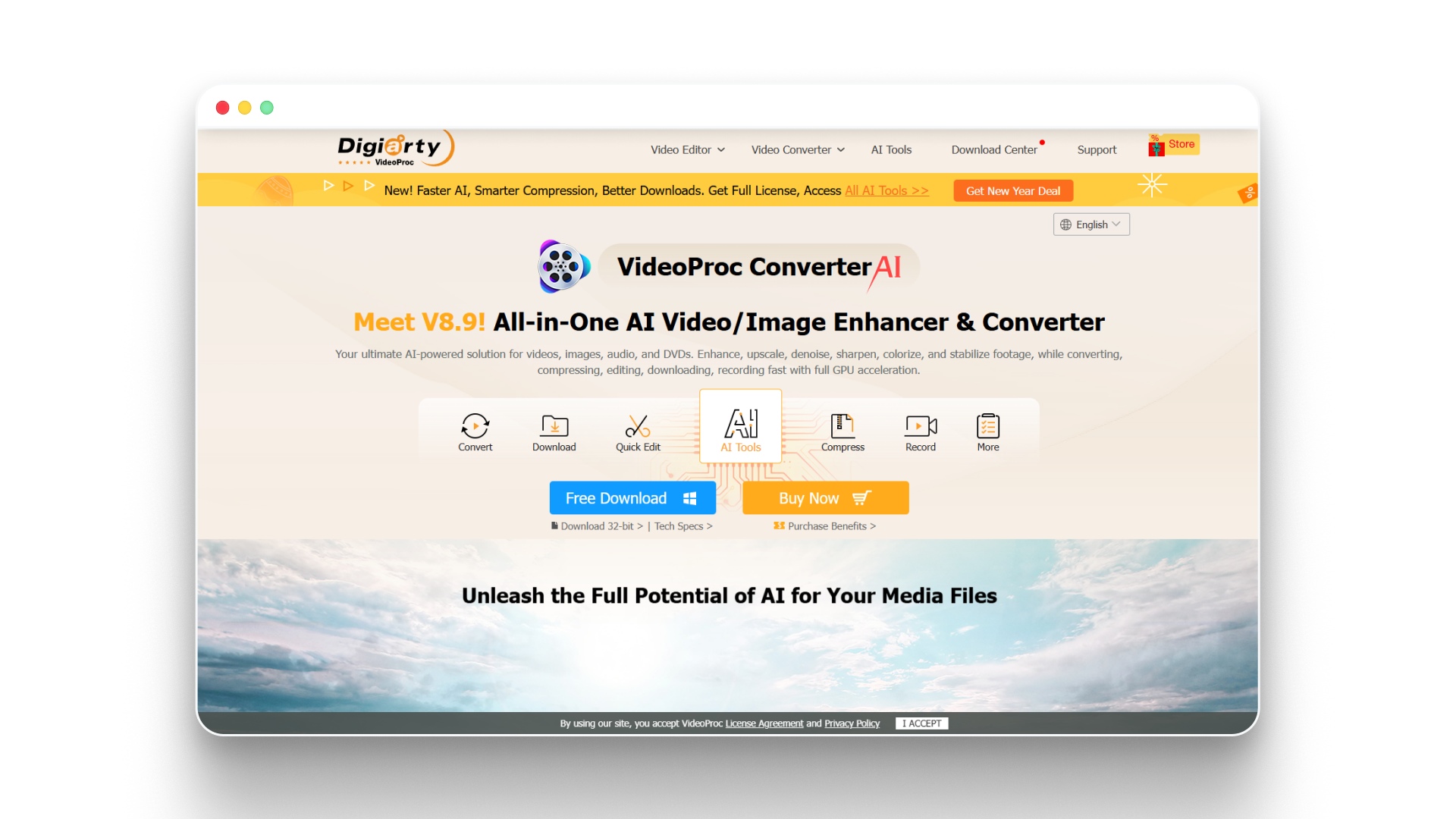
videoproc.com/video-converting-software/
VideoProc Converter AI is a platform that combines video enhancement and format conversion, making it ideal for creators who need to quickly prepare content for multiple platforms.
Rather than using separate tools to improve quality, stabilize footage, and convert formats, VideoProc handles multiple steps in a single workflow, saving time and effort. This makes it particularly useful for creators who repurpose content or work across different social and professional channels.
Where VideoProc performs well:
- Integrated enhancement and conversion: VideoProc can improve video clarity, reduce noise, and stabilize shaky footage while also converting videos to formats suitable for various platforms.
- Simplified multi-step processing: The workflow combines several processes into a single workflow, so creators do not need to switch between multiple applications to achieve the same result.
- Efficient for repurposing content: Creators can quickly adapt an existing video for new channels without losing quality or consistency.
Limitations creators often encounter:
- Limited advanced AI enhancement: While it improves quality, VideoProc does not offer the same depth of AI-driven visual improvements as specialized enhancement tools.
- Minimal creative control: Users cannot make detailed adjustments to style, color grading, or visual storytelling within the platform.
- Less suitable for high-end editing: For complex projects requiring multiple scenes, cinematic effects, or narrative structure, VideoProc is not ideal.
How creators typically use VideoProc:
- Repurposing videos for different social media or professional platforms
- Converting file formats while maintaining video quality
- Stabilizing and cleaning up shaky or noisy footage
- Streamlining workflows that involve multiple video processing steps
VideoProc works best when efficiency, workflow simplicity, and multi-platform readiness are the priorities. It is a practical choice for creators who want to enhance and convert videos quickly without juggling multiple tools.
Some tools focus on consistency across multiple videos, while others focus on deep quality improvement or fast processing. The right choice depends on how you create content and what matters more in your workflow, whether it is speed, control, or consistency.
6 Practical Ways AI Video Enhancers Are Used Today
In 2026, AI video enhancers are now essential production tools used across content pipelines, not just for fixing quality issues. Creators rely on them to improve large volumes of content, where clarity, consistency, and speed matter more than manual editing.
This is where AI video enhancers are used in regular workflows:
- Improving social media content at scale: Creators enhance Reels and Shorts so videos shot in low light or on basic phones appear sharper and more polished before posting regularly.
- Enhancing campaign and marketing videos: Brands improve multiple ad versions so each video, whether for Instagram or YouTube, maintains the same color quality and visual clarity.
- Fixing low-quality footage: Older clips or compressed videos are upgraded so a previously blurry product demo or event recording becomes usable again.
- Preparing content for multiple platforms: A single video is adjusted for vertical and horizontal formats while keeping visuals clear on both mobile screens and desktops.
- Batch processing large volumes: Teams enhance multiple videos together, so a week’s worth of content can be processed in one go without editing each file manually.
- Polishing final outputs: Before publishing, creators refine sharpness, lighting, and stability so even a slightly shaky handheld clip looks smooth and professional.
Across all these use cases, the pattern is clear: AI video enhancers are used where consistent quality and faster turnaround matter more than manual editing effort.
How To Choose the Right AI Video Enhancer in 2026?
Selecting the right AI video enhancer depends on how you plan to use it and the kind of results you expect. Instead of focusing on too many options, it helps to match the tool to your workflow and content needs.
Here’s how to decide what works best:
- For storytelling and consistent quality: Choose a tool that maintains visual continuity across scenes, so your videos feel smooth and professional from start to finish. This is useful when working on narrative content, brand films, or longer videos.
- For speed and high output: If you create a lot of content regularly, look for tools that support batch processing and automated enhancement workflows.
- For editing along with enhancement: Some tools combine video enhancement with editing features, making it easier to adjust clips, refine visuals, and finalize your video in one place with Voiceover, AI Voice Generator, or Face Swap.
- For automated workflows: If your work involves repetitive tasks or large-scale content production, tools that support automation can help streamline the process and save time.
- For quick and simple edits: If you are just getting started or need fast results, choose a tool with an easy interface that improves quality without requiring advanced technical skills.
The right choice depends on your goals, whether it is creating high-quality storytelling content, managing large volumes, or simply improving everyday videos with minimal effort.
Wrapping Up
Getting high-quality videos is no longer limited to advanced editing skills or expensive software. While traditional AI video enhancers focus on improving clip quality, platforms like Frameo combine enhancement with full video creation, helping creators produce consistent, high-quality content from start to finish.
What matters most is selecting a tool that matches your workflow, whether you need quick fixes, detailed enhancements, or an easy cloud-based solution. With AI taking care of technical improvements, more time can be spent on refining content and storytelling.
Ready to improve your video quality? Explore Frameo’s tools and start creating clearer, sharper, and more professional-looking videos.
FAQs
1. How can an AI video enhancer improve video quality?
An AI video enhancer improves video quality by sharpening details, increasing resolution, adjusting lighting, and reducing noise to make videos look clearer and more professional.
2. Can AI enhance low-resolution or damaged videos?
Yes. AI tools can restore details, improve clarity, and correct colors, making low-quality or older videos look more refined.
3. Is it easy to use an AI video enhancer without editing skills?
Yes. Most tools are simple to use. You can upload a video, choose enhancement options, and let the tool process it automatically.
4. What should you check before choosing an AI video enhancer?
Look for features like resolution upscaling, noise reduction, color correction, frame enhancement, and support for different formats. Batch processing is helpful for handling multiple videos.
5. Can AI video enhancers make content better for social media?
Yes. They can improve clarity, adjust brightness, and resize videos to fit different platforms, making content more engaging.
6. Are AI video enhancers useful for professional work?
Yes. Many tools provide high-quality results that can be used for content creation, marketing, and video production projects.
7. How long does AI video enhancement usually take?
The time depends on video length and quality. Short clips process quickly, while longer or higher-resolution videos take longer.
8. Can you enhance several videos at the same time?
Yes. Many AI video enhancers support batch processing, allowing multiple videos to be enhanced together.