Best AI Video Upscaler App: Top 8 Picks for 2026
Find the best AI video upscaler app for your needs. Get a complete breakdown of the 8 best tools for 2026, with their key features, pros, cons, and pricing.
Your video clips look great at first glance. Then you zoom in and realize the final output looks soft and pixelated on a big screen. We understand, it can be really frustrating.
An AI video upscaler fixes this by adding real detail back into every frame. Adobe reports that 55% of creators already rely on AI for upscaling and enhancement tasks. Improving video quality with AI upscaling tools is now a standard part of every content creator’s workflow.
This guide covers the 8 best AI video upscaler apps available today. You will get a detailed breakdown of each, along with their standout features, pros, cons, and pricing, so that you can pick the right tool for your needs.
Key Takeaways
- Top AI video upscaler apps: Frameo, Topaz Labs, TensorPix, AVCLabs, Picwand, Fotor, Krea, and Vmake AI are some of the best AI video upscaler apps.
- AI video upscaling rebuilds detail, not just pixels: Trained models add sharpness, texture, and clarity frame by frame instead of stretching what is already there.
- Desktop apps deliver the best quality: Local processing with a dedicated Graphics Processing Unit (GPU) gives you more control and sharper output than browser-based options.
- Cloud apps need zero hardware: All processing runs on remote servers, so your computer specs do not matter.
- All-in-one platforms reduce tool-switching: Some apps bundle upscaling with video generation and editing in a single workspace.
What Is AI Video Upscaling and How Does It Work?
AI video upscaling is the process of increasing a video's resolution using machine learning models. Instead of duplicating or stretching existing pixels, the AI predicts what new pixels should look like based on patterns it learned during training.
Traditional upscaling simply makes pixels bigger, which leads to blurry, soft output. AI upscaling adds detail that was not in the original file. It can sharpen edges, reduce noise, and restore textures across every frame. For instance, a 480p home video can be upscaled to 1080p or even 4K with noticeably more clarity. This is one of the key AI video production benefits that creators are taking advantage of today.
Here's how the process typically works:
- Frame analysis: The AI scans each frame of your video to identify objects, faces, textures, and motion patterns.
- Detail prediction: Based on its training data, the model generates new pixels that match the visual context of each frame.
- Noise reduction: Many upscalers also clean up grain, compression artifacts, and color shifts during the same pass.
- Output rendering: The final video is exported at the higher resolution with improved sharpness and detail.
Most AI video upscaling software handles this entire process automatically. You upload a video, choose your target resolution, and the tool does the rest. This is useful whether you are enhancing old footage or polishing output from a text-to-video generator.
Tip: If your source footage is extremely low quality (below 360p), even AI upscaling can only do so much. Starting with the highest quality source file you have will always give better results.
Why Does AI Video Upscaling Matter for Creators?
Video quality directly affects how audiences engage with your content. Platforms like YouTube, TikTok, and Instagram prioritize high-resolution uploads in their algorithms. A sharp 4K video gets more visibility than a soft 720p clip, even if the content is identical. This is especially true for social media video, where first impressions happen in seconds.
Here are the main reasons creators rely on AI video upscaling software:
- Repurpose older footage: Upscale archived clips, old phone recordings, or vintage film scans to modern High Definition (HD) or 4K standards without re-shooting.
- Polish AI-generated content: Many AI video generators output at 720p or 1080p, and upscaling lets you sharpen those results for larger screens or professional delivery.
- Meet platform requirements: YouTube recommends 1080p or higher for quality playback, and 4K content gets a dedicated quality badge that attracts more clicks.
- Improve webcam and screen recordings: Video calls, tutorials, and product demos often suffer from compression, and upscaling brings back clarity.
- Save production costs: Instead of renting better cameras or re-hiring actors, upscaling existing footage gives you a budget-friendly quality boost.
In creator workflows, upscaling often sits at the end of the video production process, right before final export. Getting this step right can make the difference between content that looks amateur and content that looks polished.
Note: Upscaling works best on footage that has decent composition and lighting. It improves resolution and sharpness, but it cannot fix problems like poor framing or extreme motion blur.
8 Best AI Video Upscaler Apps for 2026
Choosing the right AI video upscaler app depends on your budget, hardware, and how you plan to use it. Some apps are built for professionals with powerful GPUs, while others run entirely in your browser. Here’s a quick comparison of all apps:
Tool | Type | Max Resolution | Free Tier | Starting Price |
Frameo | All-in-one platform | 4K | Limited free credits | $10/mo |
Topaz Labs | Desktop software | 16K | Free trial | $37/mo (Studio) |
TensorPix | Online cloud | 4K | Yes (limited credits) | $5.50/mo |
AVCLabs | Desktop + Online | 8K | Free online tool | $39.95/mo |
Picwand | Desktop + Online | 4K | Yes (limited) | $7.08/mo (yearly) |
Fotor | Online editor | 4K | Yes (limited) | $3.99/mo |
Krea | AI creative suite | 8K | Yes (daily credits) | $9/mo |
Vmake | Online + App | 4K | Yes (daily credits) | $5.83/mo |
Each app serves a slightly different use and need. Here’s a closer look at what makes each one stand out.
1.Frameo

Frameo is an AI-native video creation platform built for storytellers and content creators. It covers the full video production pipeline, from scripting and character creation to image generation, animation, and final assembly, all in one workspace.
While many tools on this list focus only on upscaling, Frameo takes a different approach. It generates high-quality video from scratch and gives you control over every step, including visual quality. This means you can create, refine, and export polished videos without jumping between separate apps for generation, editing, and enhancement.
Key features:
- End-to-end video creation: Go from a story idea to a finished cinematic video with consistent characters, scenes, and audio in a single platform.
- Multi-model access: Choose from top AI models like Kling, Veo 3.1, Nano Banana, and Seedream for generation and editing, giving you flexibility in output quality.
- Conversational editing: Refine characters, shots, and scenes through a chat interface, so you can adjust visuals, wardrobe, lighting, and composition without technical skill.
- Multi-format export: Export your videos in formats sized for YouTube, TikTok, Instagram Reels, and more, all from one project.
Pros:
- Full production pipeline: No need to stitch together separate tools for scripting, generation, upscaling, and editing.
- Character consistency: Maintains the same character appearance across every scene and shot, which standalone upscalers cannot do.
- Built for creators: The conversational interface is accessible for people who are creative-first, not technical-first.
Cons:
- Not a standalone upscaler: If you only need to upscale existing footage with no other changes, a dedicated upscaler may be a simpler choice.
- Credit-based system: Video generation and enhancement consume credits, which can run out quickly on lower-tier plans.
- Newer platform: Still expanding its feature set compared to established single-purpose upscaling tools.
Best for:
- Creators building videos from scratch: If you are generating content with AI and want quality baked into every step, this is the most efficient workflow.
- Social media producers: Ideal for creating short-form video for Reels, Shorts, and TikTok with polished, consistent results.
Pricing:
- Starter: $10/month (600 credits, approximately 30 seconds of generative video).
- Creator: $75/month (7,500 credits, approximately 7.5 minutes of generative video).
- Wizard: $200/month (25,000 credits, approximately 30 minutes of generative video).
2.Topaz Labs
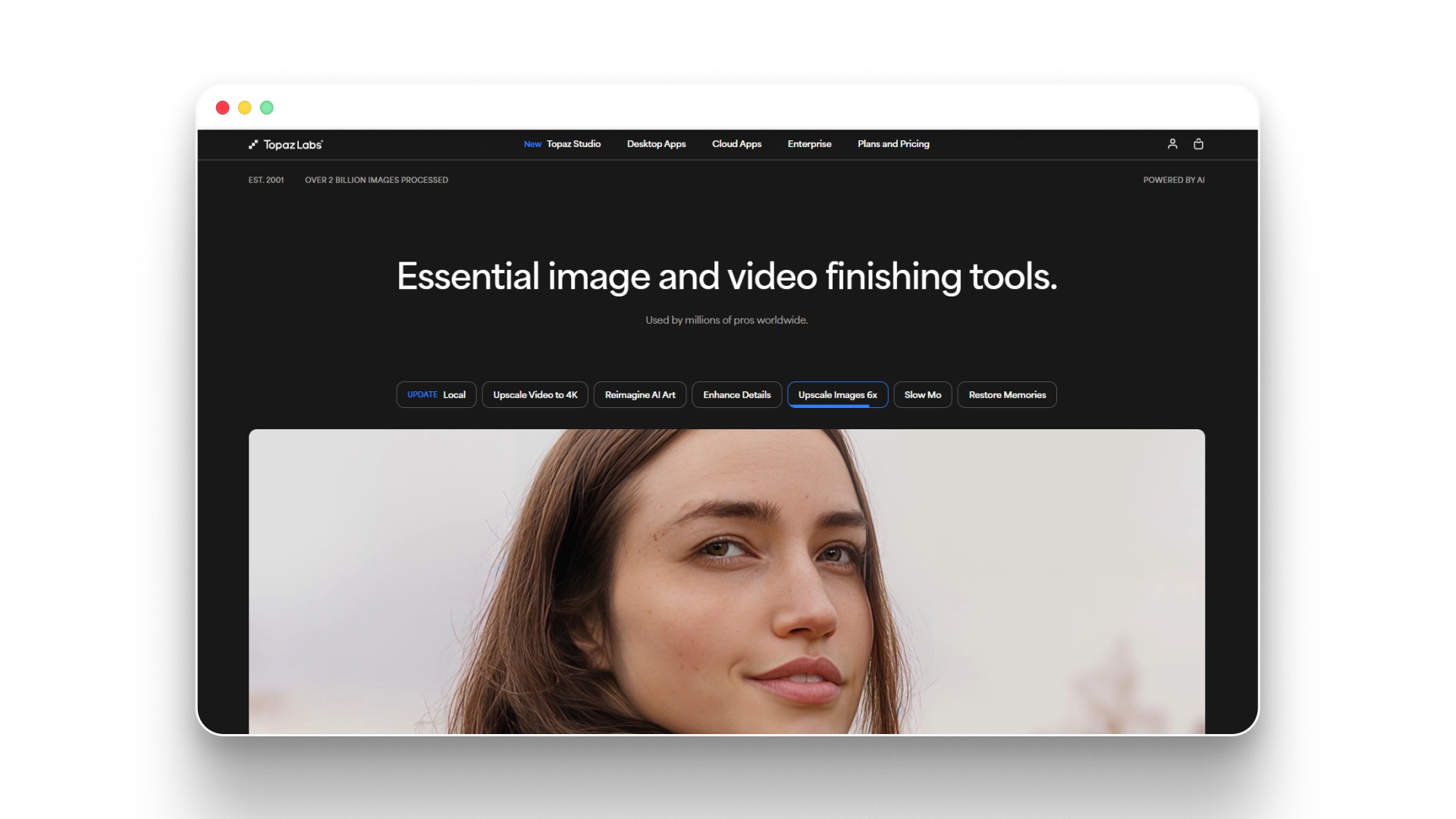
Topaz Labs is widely considered the industry standard for AI video upscaling on desktop. Its flagship product, Topaz Video AI, uses deep learning models trained on millions of video frames to upscale footage up to 16K resolution.
The software runs locally on your machine, which means processing speed depends heavily on your GPU. It offers multiple AI models, each tuned for specific use cases like denoising, deinterlacing, and face recovery.
Key features:
- Multiple AI models: Choose from presets like Film and TV, Sports, Gaming, Old Video, and Art to match your footage type for more accurate results.
- Frame interpolation: Boost frame rates to create smoother motion, especially useful for older or choppy footage.
- Face refinement: A dedicated model restores facial detail in portrait-heavy video, making it ideal for interviews and vlogs.
- Real-time preview: See the upscaled output before committing to a full render, so you can adjust settings without wasting time.
Pros:
- Top-tier output quality: Consistently delivers the sharpest, most detailed results in professional testing and community comparisons.
- Highly customizable: Advanced controls let you fine-tune sharpening, denoising, and grain to get exactly the look you want.
- Cloud option available: Topaz now offers Astra for cloud-based video upscaling, so you do not need a powerful GPU for every task.
Cons:
- Expensive: Topaz Studio starts at $37/month, and standalone Topaz Video AI costs $33/month, making it one of the pricier options.
- Needs a strong GPU: Local processing requires a capable NVIDIA or AMD graphics card, and rendering can be slow on older hardware.
- Steep learning curve for beginners: The range of models and settings can feel overwhelming if you are new to video enhancement.
Best for:
- Professional editors and filmmakers: If video quality is your top priority and you have the hardware to support it, Topaz is the go-to choice.
- Archival restoration: Ideal for upscaling old home movies, Video Home System (VHS) transfers, and legacy film footage to modern standards.
Pricing:
- Topaz Studio: $37/month (annual commitment) for all desktop and cloud apps.
- Topaz Video AI standalone: $33/month (annual commitment).
- Cloud Collection: $29/month for Astra, Bloom, Express, and other cloud tools.
3.TensorPix
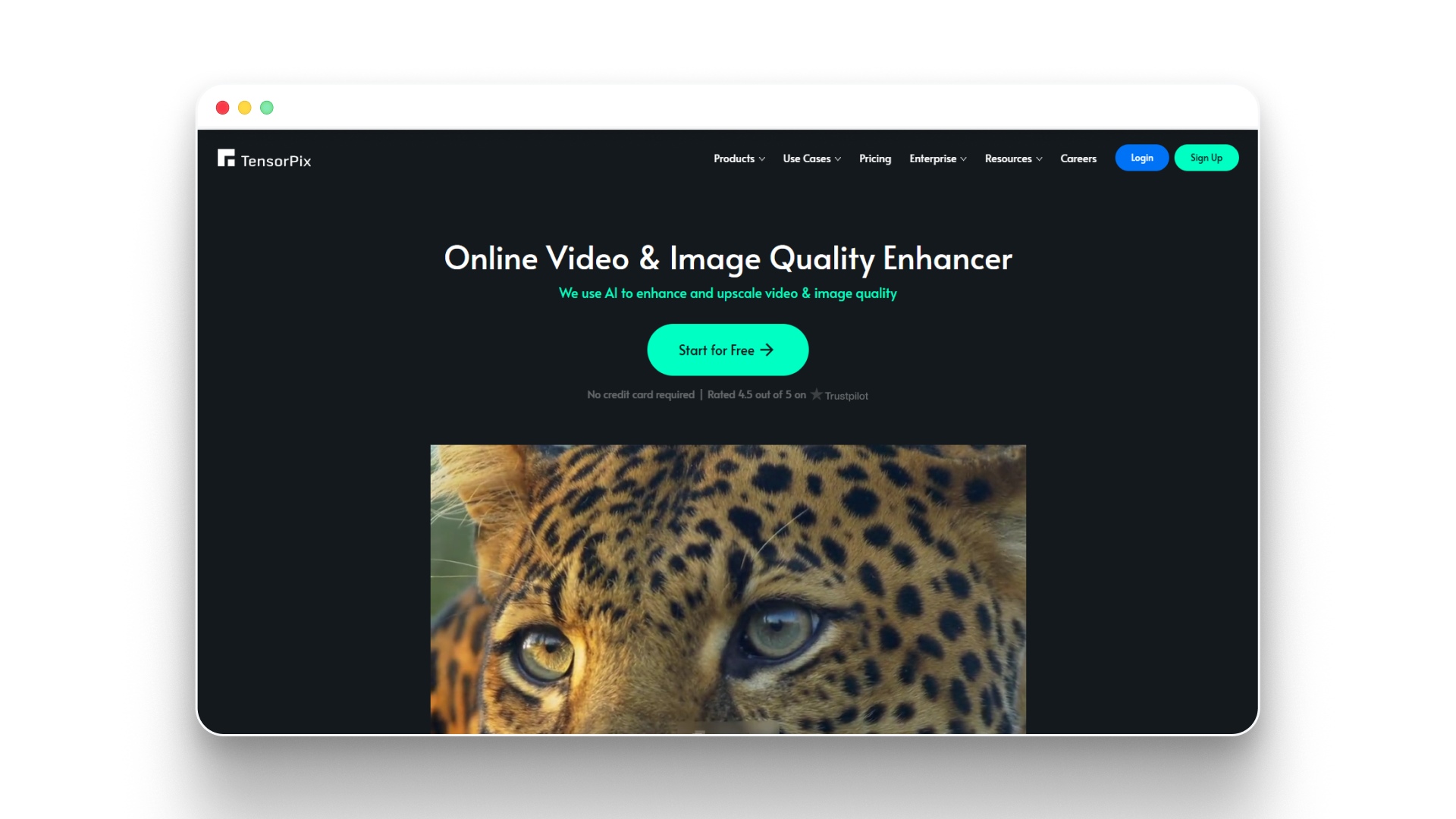
TensorPix is a cloud-based AI video enhancer that runs entirely in your browser. It focuses on simplicity: upload a video, select your AI filters, and get enhanced output within minutes. No software download needed.
The platform is built for speed and accessibility, making it a strong option for creators who do not have high-end GPUs or prefer not to install desktop software.
Key features:
- Browser-based processing: Upload and enhance videos from any device with an internet connection, with no installation required.
- Stackable AI filters: Apply up to five AI filters per video, including upscaling, denoising, stabilization, color correction, and frame interpolation.
- Batch processing: Enhance multiple videos at once using GPU-accelerated cloud servers that process significantly faster than a typical home computer.
- Application Programming Interface (API) access: Integrate TensorPix's upscaling into your own apps or workflows through their REST API for automated processing.
Pros:
- No hardware requirements: All processing happens on TensorPix's servers, so your computer's specs do not matter.
- Fast turnaround: Most videos are processed in under three minutes for standard lengths, with email notification when done.
- Trusted by professionals: Trusted by organizations, professional editors and content teams for fast cloud-based video enhancement.
Cons:
- Credit-based pricing: Each enhancement uses credits, and costs can add up quickly if you process many videos or use multiple filters.
- Free tier is limited: The pay-as-you-go plan only includes credits you earn by logging in, and resolution is capped at 720p.
- Upload size limits: Larger or longer files require a paid plan, and processing times increase with higher resolutions.
Best for:
- Creators without powerful hardware: If your laptop cannot handle GPU-intensive desktop software, TensorPix lets you get quality results through the cloud.
- Quick, one-off improvements: Great for enhancing a single video call recording or polishing a clip before posting to social media.
Pricing:
- Pay As You Go: Free (limited credits, 720p max).
- Standard: $5.50/month billed yearly (420 credits/year, up to 4K).
- Premium: $12.42/month billed yearly (1,320 credits/year, up to 4K).
- Elite: $30.25/month billed yearly (custom credits, up to 4K).
4.AVCLabs
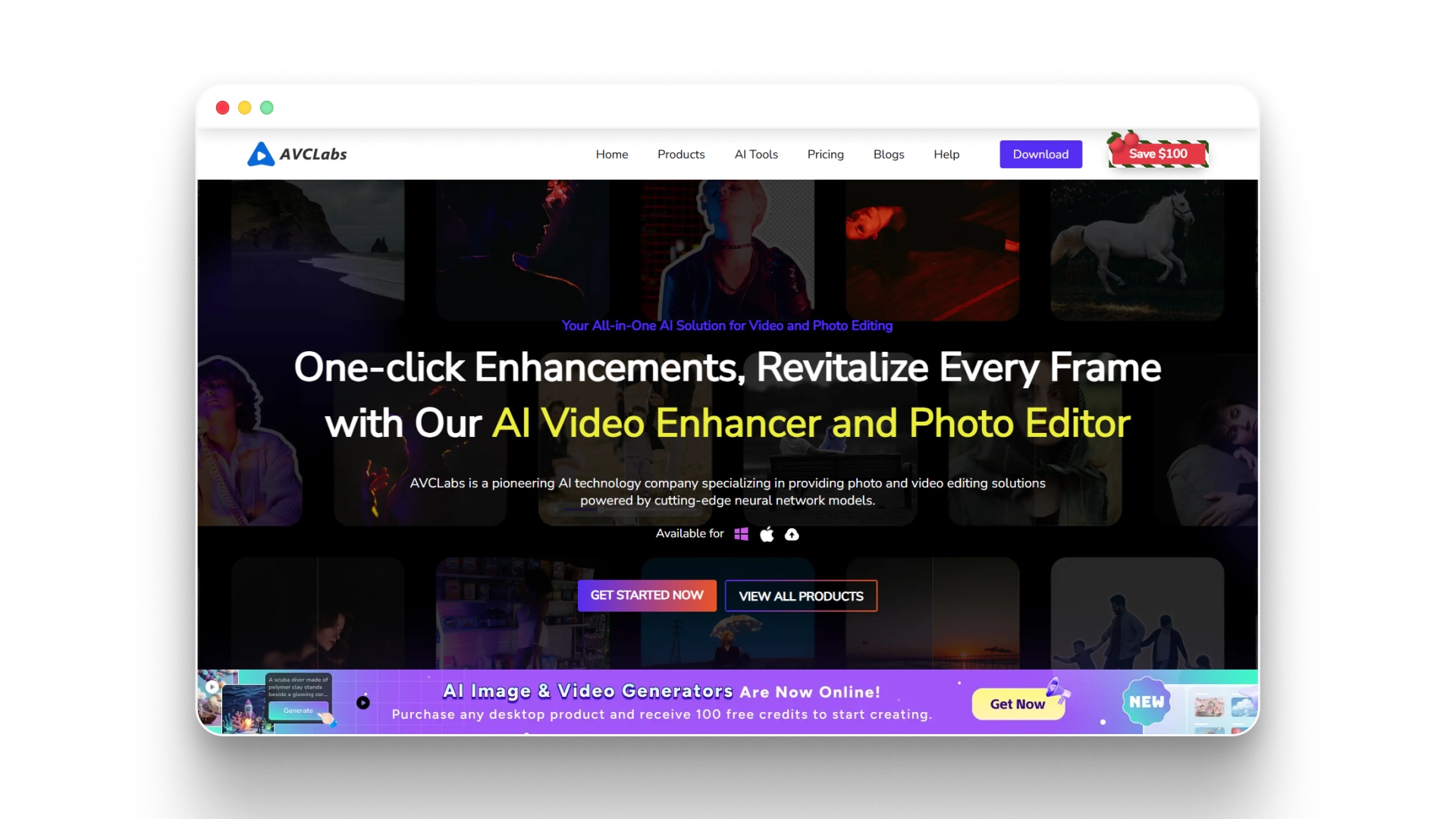
AVCLabs offers both a desktop application (AVCLabs Video Enhancer AI) and a free online video upscaler. The desktop version supports upscaling up to 8K resolution using deep learning neural networks, while the online tool handles quick upscaling tasks without any software installation.
The platform focuses on automated enhancement, meaning it handles most of the work with minimal manual input.
Key features:
- 8K upscaling support: The desktop app can push video resolution from SD all the way to 8K, giving you headroom for large-screen or archival output.
- Face restoration model: A dedicated AI model detects and sharpens facial features in portrait-heavy footage, improving skin tones and expressions.
- Free online upscaler: Upload a video to their website for quick, no-cost upscaling to HD or 4K without creating an account.
- Batch video processing: Queue multiple videos for enhancement and let the software process them one after another without manual intervention.
Pros:
- Free online option: The browser-based upscaler works without signup or payment, making it easy to test results before committing to the desktop app.
- Solid desktop performance: The full software handles complex enhancement tasks like motion compensation and multi-pass processing effectively.
- Cross-platform: Available for both Windows and Mac users with the same feature set.
Cons:
- Desktop app is pricey monthly: At $39.95/month for Video Enhancer AI alone, costs add up if you do not use it frequently.
- Online tool has limitations: The free web version caps video length and resolution, and does not include advanced features like deinterlacing or stabilization.
- Interface feels dated: The desktop app's design is functional but not as polished or intuitive as some newer competitors.
Best for:
- Quick free upscaling: The online tool is great for testing AI upscaling on a few clips without any commitment.
- Desktop power users: If you need 8K support or advanced face refinement for professional projects, the full software delivers.
Pricing:
- Online upscaler: Free (with watermark and length limits).
- Video Enhancer AI: $39.95/month or bundled with Photo Enhancer AI for $49.95/month.
- Photo and Video AI Bundle: $49.95/month for both video and photo enhancement tools.
5.Picwand
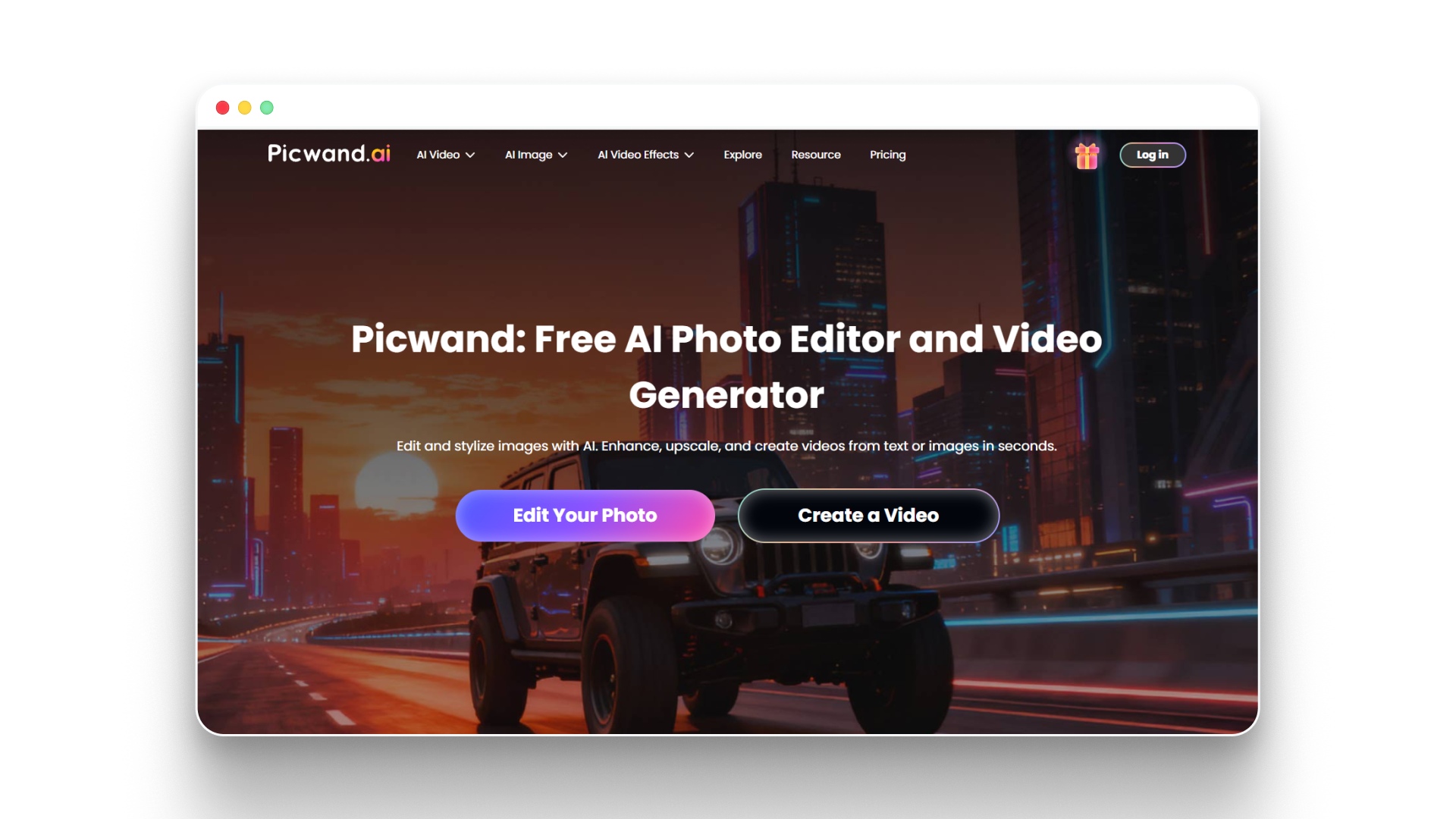
Picwand is an AI-powered photo editor and video generator that also includes a dedicated video upscaler. The platform runs across desktop, mobile, and web, making it flexible for creators who work on different devices.
The video upscaler can push clips up to 4K resolution with one click, and the platform also offers denoising, color correction, and frame interpolation as separate tools.
Key features:
- One-click 4K upscaling: Upload your video and upscale to 4K without adjusting any settings, making it one of the simplest tools to use.
- AI video denoiser: Remove grain and visual noise from low-light or older footage in a separate dedicated tool alongside upscaling.
- Cross-device access: Use the same Picwand account on Windows, Mac, iOS, Android, and web browsers with a single subscription.
- AI video generation: Beyond upscaling, Picwand also offers text-to-video and image-to-video generation using models like Seedance and Kling.
Pros:
- Simple and fast: The one-click workflow makes it accessible for anyone, regardless of technical experience.
- Multi-platform: Work on your laptop at home and finish on your phone during a commute with the same account.
- Bundled tools: The subscription includes photo editing, video generation, and enhancement in one package.
Cons:
- Credit-based system: Even paid plans have credit limits, and video upscaling consumes more credits than image editing.
- Max 4K resolution: If you need anything above 4K (like 8K for archival work), you will need a different tool.
- Upscaling is not the core focus: Picwand is primarily a photo editor and video generator, so its upscaling features are not as deep as dedicated upscalers.
Best for:
- Mobile-first creators: If you frequently edit and upscale videos on your phone, Picwand's cross-device support is a strong advantage.
- Creators who need multiple tools: If you want photo editing, video generation, and upscaling in one subscription, Picwand covers all three.
Pricing:
- Monthly: $14.90/month (100 credits).
- Yearly: $7.08/month billed at $84.90/year (1,500 credits total).
- Perpetual: $147.90 one-time (3,000 credits, never expire).
6.Fotor
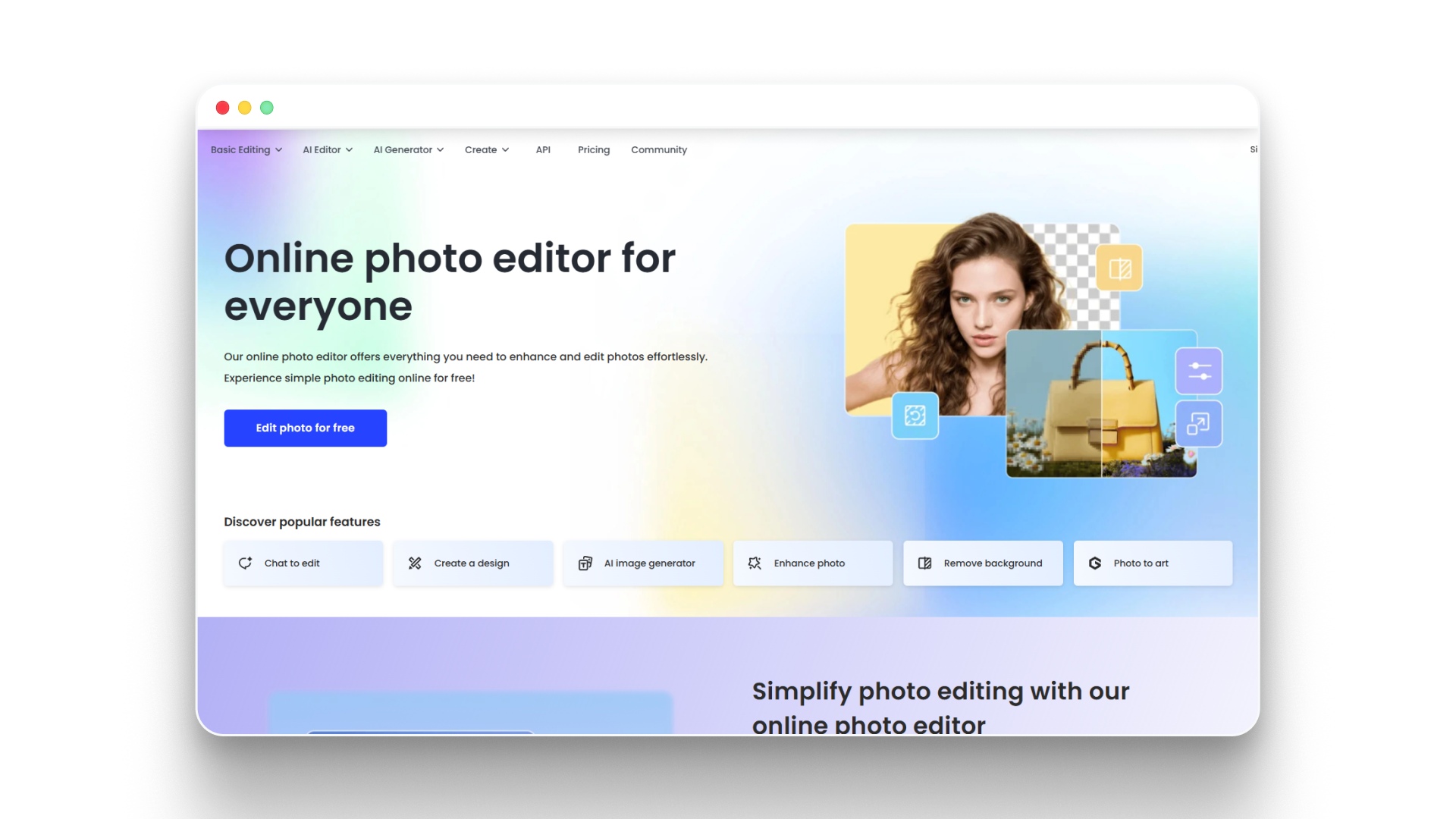
Fotor is a well-known online photo editor that has expanded into AI video upscaling. Its video upscaler runs entirely in the browser and offers automatic enhancement from as low as 240p up to 4K.
The tool is designed for simplicity. Upload a video, let the AI process it, and download the improved file. Fotor also adds color correction, denoising, and unblurring to the upscaling pass.
Key features:
- Automatic enhancement pipeline: The AI handles resolution upscaling, color correction, noise removal, and detail sharpening in a single automated process.
- No installation needed: Everything runs in the browser, so you can upscale from any computer or device without downloading software.
- Video unblurring: Specifically addresses motion blur in portrait-heavy footage, improving faces and moving subjects.
- Format flexibility: Supports MP4, MOV, and WebM uploads, and outputs are ready for YouTube, TikTok, or Instagram.
Pros:
- Very affordable: Paid plans start at $3.99/month, making Fotor one of the cheapest options for AI video upscaling.
- Easy to use: The one-click workflow requires zero technical knowledge, and results are ready in minutes.
- Photo editing included: Your subscription also gives you access to Fotor's full photo editing suite with AI tools.
Cons:
- Limited video-specific controls: You cannot fine-tune upscaling models, sharpening levels, or denoising strength the way you can in desktop tools.
- Credit system applies: Video processing uses credits from your Fotor plan, which are shared with photo editing and AI generation features.
- Output quality ceiling: For professional-grade upscaling, Fotor's results are good but not on par with dedicated tools like Topaz.
Best for:
- Budget-conscious creators: If you need occasional upscaling and do not want to spend much, Fotor's pricing is hard to beat.
- Photo editors adding video: If you already use Fotor for photo editing, the video upscaler is a convenient addition to your existing workflow.
Pricing:
- Basic: Free (limited credits, watermarked exports).
- Pro: $3.99/month billed yearly (1,200 credits/year).
- Pro+: $8.33/month billed yearly (3,600 credits/year).
- Max: $19.99/month billed yearly (12,000 credits/year).
7.Krea
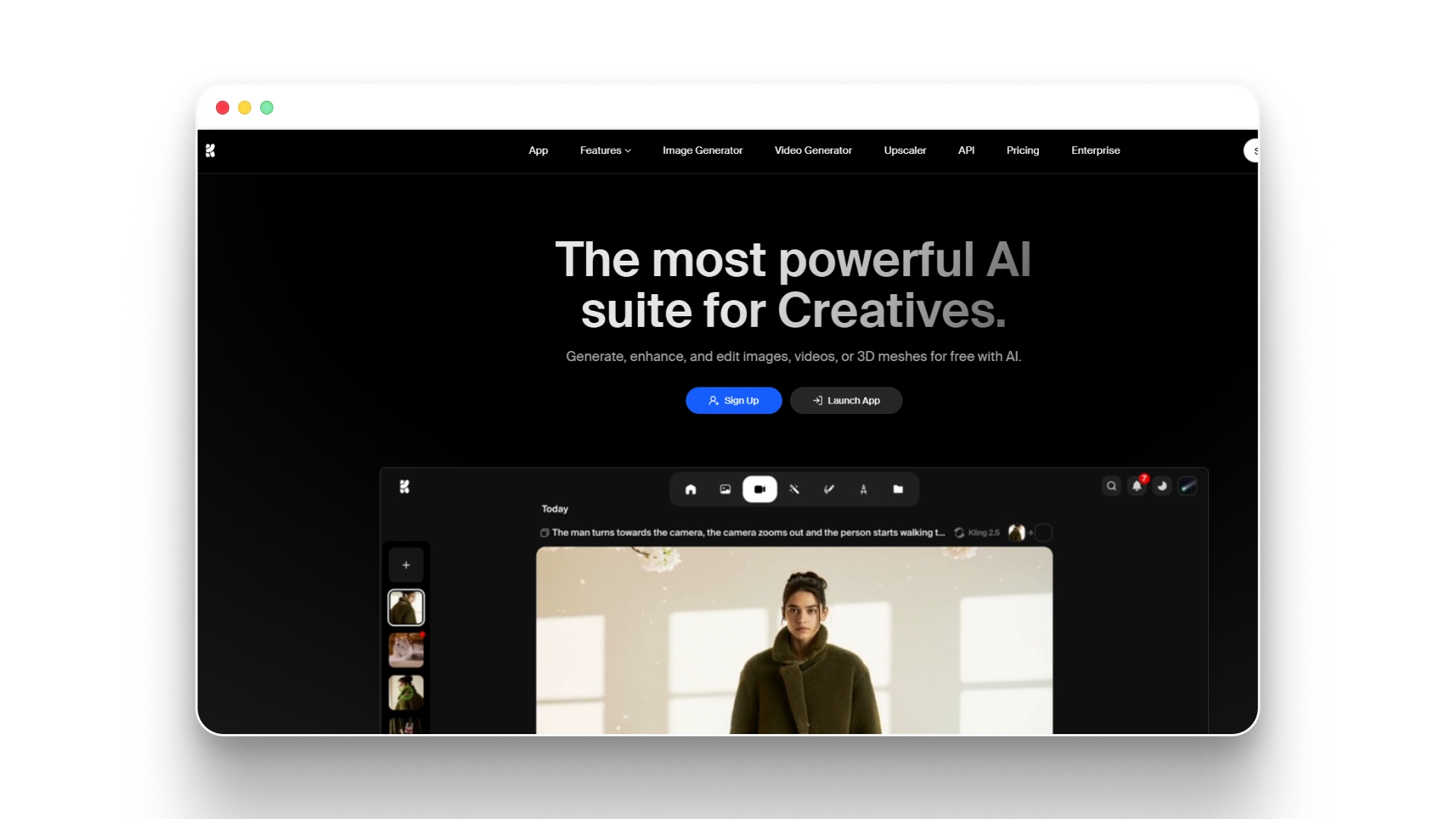
Krea is an AI creative suite that covers image generation, video generation, 3D object creation, and video enhancement. Its video upscaler can push output up to 8K resolution, and it includes frame interpolation for smoother motion.
The platform is popular with AI artists and creators who generate content using AI models and need to upscale the output for high-resolution delivery.
Key features:
- Up to 8K upscaling: Scale videos to extremely high resolutions, giving you headroom for large displays, prints, or archival storage.
- Frame interpolation to 120 frames per second (fps): Boost frame rates for smoother playback, especially useful for slow-motion effects or converting low-fps footage.
- Video style transfer: Apply visual styles to your video content, changing the aesthetic of existing footage using AI-driven filters.
- LoRA fine-tuning: Train custom AI models on your own images or video to create personalized upscaling and generation results.
Pros:
- High resolution ceiling: 8K support (up to 22K on the Max plan) is among the highest available in any cloud-based tool.
- Creative suite included: Your subscription also covers image generation, 3D objects, and real-time AI creation tools.
- Node-based workflow: Pro users can build automated pipelines using Krea's node editor for repeatable, scalable processing.
Cons:
- Compute unit system: Each operation uses compute units, and complex tasks like 8K upscaling consume them quickly.
- Free tier is very limited: Daily credits refresh but are only enough for basic experiments, not regular production use.
- Primarily for AI-generated content: The tool is tuned for AI art and generated video, so results on traditional camera footage can vary.
Best for:
- AI artists and generative creators: If you generate images and video with AI and need to upscale output for professional use, Krea is built for your workflow.
- Creators who want one platform: The creative suite approach means you can generate, upscale, and restyle content without leaving the app.
Pricing:
- Free: 100 daily compute units, limited access.
- Basic: $9/month (5,000 compute units, upscale to 4K).
- Pro: $35/month (20,000 compute units, upscale to 8K).
- Max: $105/month (60,000+ compute units, upscale to 22K).
8.Vmake AI
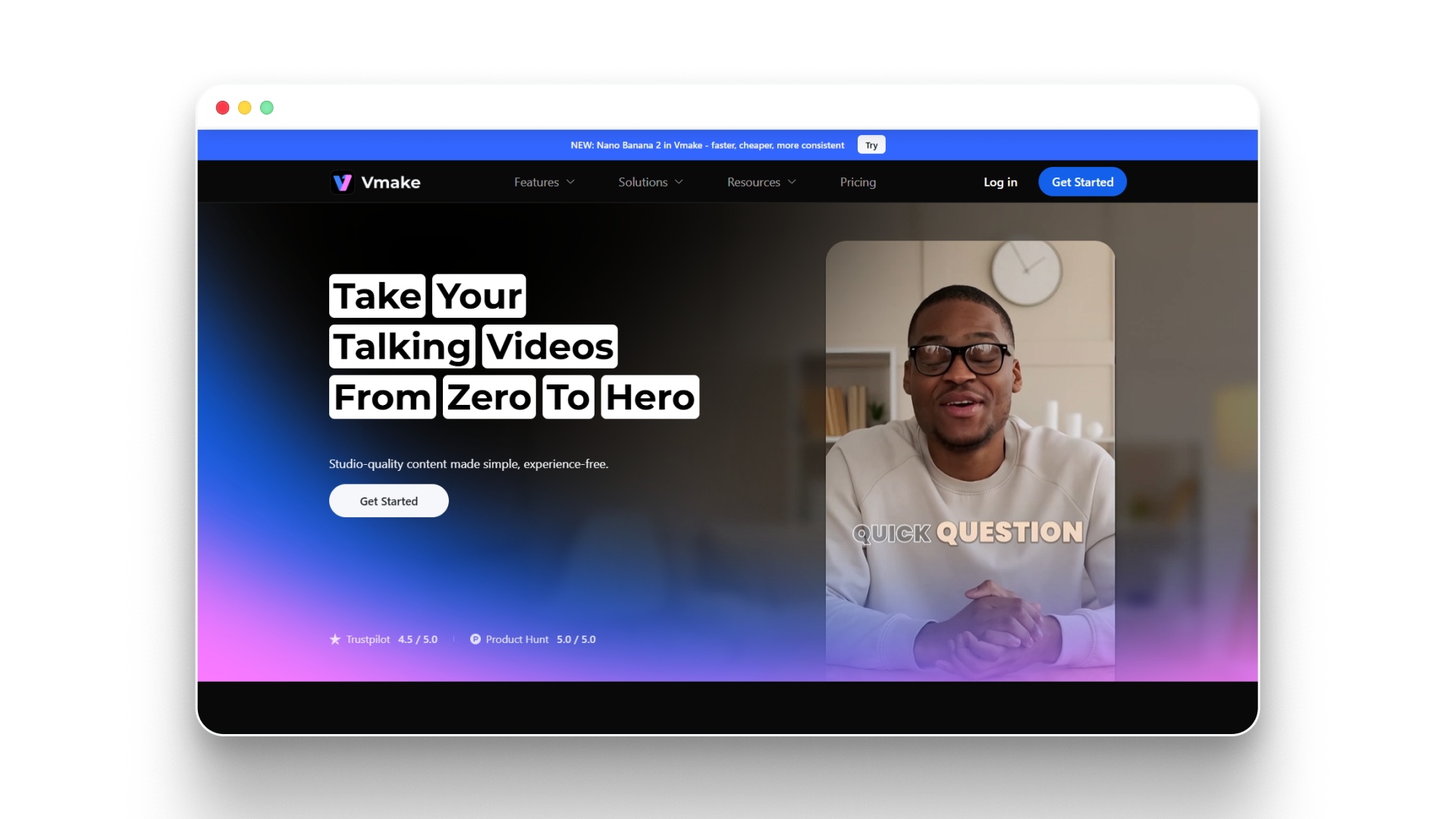
Vmake AI is an online and app-based video editor focused on talking-head videos, User-Generated Content (UGC), and social media clips. It includes a video upscaler alongside tools for watermark removal, background removal, auto captions, and noise reduction.
The platform is designed for speed and simplicity, targeting creators who produce short-form content for TikTok, YouTube Shorts, and Instagram Reels.
Key features:
- Video upscaling to 4K: Boost resolution on short clips and talking-head videos, with Pro plan support for 2K and 4K export.
- Built-in watermark remover: Remove text, logos, and captions from existing video clips alongside upscaling, saving you an extra tool.
- Auto captions: Generate styled subtitles from speech automatically, which can be added to upscaled videos in the same workflow.
- Noise reduction: Clean up audio and video noise in low-quality recordings, improving both visual and audio clarity in one pass.
Pros:
- Focused on talking videos: If your content is primarily face-to-camera videos, Vmake's tools are specifically tuned for this format.
- Affordable Pro plan: At $17.50/month, the Pro plan gives you 4K export, 50 daily uses of core tools, and access to all video generation models.
- Mobile app available: Create, upscale, and edit videos from your phone with the same feature set as the web version.
Cons:
- 4K is the maximum: No 8K or higher resolution support, which may be a limitation for archival or large-screen projects.
- Daily usage caps: Even paid plans limit how many files you can process per day (10 on Plus, 50 on Pro).
- Narrower focus: Vmake is best for talking-head and UGC content, so traditional footage, animation, or cinematic video may not get the best results.
Best for:
- UGC and talking-head creators: If your primary output is face-to-camera videos for social media, Vmake's toolset is tailored to your needs.
- Creators who need quick turnarounds: The combination of upscaling, caption generation, and watermark removal in one platform speeds up social content production.
Pricing:
- Free: 50 credits on signup, 20 daily credits (watermarked exports).
- Plus: $5.83/month billed yearly (1,000 credits/month, 1080p export).
- Pro: $17.50/month billed yearly (4,500 credits/month, up to 4K export).
How to Choose the Right AI Video Upscaler App
Picking the right app comes down to your specific situation. Here are the most important factors to consider while choosing an AI video upscaler app:
- Your hardware: If you have a powerful GPU, desktop apps give you the best quality and control. If your computer is basic, cloud-based apps handle all processing on remote servers, so your specs do not matter.
- Your budget: Free tiers work for occasional use, but professional creators should typically expect to pay $5 to $40 per month, depending on the features they need.
- Your content type: Talking-head and UGC creators benefit from apps with purpose-built features for face-to-camera video. Filmmakers and editors need deeper model customization. Creators building AI-generated stories benefit from an all-in-one platform that handles both creation and quality.
- Resolution needs: Most apps max out at 4K, which is enough for social media and YouTube. For archival work, large displays, or print, look for 8K or higher resolution support.
- Workflow integration: Consider how the upscaler fits into your existing process. Standalone apps require exporting and re-importing between tools. All-in-one platforms keep everything in one workspace, which saves time on every project.
The best AI video upscaler app is the one that fits your workflow without adding friction. If upscaling is your only need, a focused app is the right pick. If you want to create, edit, and enhance in one place, a full-stack platform will save you time.
Tip: Before committing to a paid plan, test two or three apps with the same video clip. Compare the output side by side to see which one handles your specific footage type best.
Common Challenges with AI Video Upscaling
AI video upscaling has improved significantly, but it is not perfect. Knowing the limitations helps you set realistic expectations and get better results.
- Over-sharpening artifacts: Some tools push sharpness too far, creating halos around edges or a plastic-looking texture on skin. If your output looks unnatural, reduce the sharpening intensity or try a different AI model.
- Long processing times: High-resolution upscaling (4K and above) takes significant time, especially on cloud platforms with queue systems. Desktop tools with strong GPUs process faster, but rendering a 10-minute video can still take over an hour.
- Inconsistent results across footage types: AI models trained mostly on natural video can struggle with animation, screen recordings, or highly stylized content. Always preview a short section before processing a full video. If you are working with AI-generated video, testing short clips first is especially important.
- File size increases: Upscaled video files are significantly larger than the originals. A 100MB 720p file could become a 1GB+ 4K file. Make sure you have enough storage and bandwidth for the output.
- Face rendering issues: While face restoration has improved, some tools still produce slightly altered or smoothed facial features. This is most noticeable in close-up shots of people the viewer knows well.
These challenges are manageable. Testing with short preview clips, starting with the highest-quality source footage you have, and adjusting tool settings based on your content type will help you get consistently good results.
Go from Ideas to High-Quality Videos with Frameo
Most AI video upscalers handle one part of the process. They take existing footage and make it sharper. That works well if your video is already shot and edited. But if you are building video content from scratch, you need a platform that takes care of quality at every step.
Frameo is built for exactly this need. It is an AI-powered production platform where you go from a story prompt to a finished, polished video without switching between tools. You write your script, define your characters, generate visuals, assign voices, add music, and export for any platform, all inside one workspace. Character consistency, scene coherence, and audio quality are handled throughout the process, not patched on at the end.
When video quality is built into the creation process itself, the need for a separate upscaling step shrinks. Frameo gives you the control to produce high-quality output from the start, so your final export is already sharp, clean, and ready to publish.
Final Thoughts
The best AI video upscaler app for you depends on what you are creating and how you work. If you need raw upscaling power and have the hardware, Topaz Labs sets the standard. For quick cloud-based enhancements, TensorPix and Fotor are reliable and affordable. If you want upscaling bundled with a broader creative toolkit, Krea and Picwand offer solid all-in-one packages.
For creators who build video content from the ground up, the smarter approach is to start with a platform that handles quality at every stage. Frameo lets you go from a story idea to a finished, polished video in one place, with consistent characters, professional audio, and multi-format export built in. Start creating with Frameo today and see how much easier your video workflow can be.
FAQs
1.What resolution can AI video upscaler apps reach?
Most apps support upscaling to 4K, while advanced desktop software like Topaz Labs can reach up to 16K. Cloud-based platforms typically cap at 4K, which is enough for social media and streaming.
2.Can I upscale a video without a powerful GPU?
Yes, cloud-based tools handle all processing on their servers. You only need a web browser and a stable internet connection to upscale your videos.
3.Does upscaling increase video file size?
Yes, higher resolution means more data per frame. A 720p video upscaled to 4K can be larger than the original file. Plan your storage accordingly.
4.Is free AI video upscaling good enough for professional use?
Free tiers are useful for testing and occasional clips. For consistent professional output, paid plans offer higher resolution limits, faster processing, and no watermarks.
5.What is the difference between upscaling and enhancing?
Upscaling increases resolution by adding new pixels. Enhancing is a broader term that includes upscaling, color correction, stabilization, and sharpening. Most tools do both.