How to Use the Ken Burns Effect on Images
Master the Ken Burns effect by choosing the right software, setting keyframes, and perfecting zoom and pan motions. Enhance your projects today.

If you’re building a video sequence right now using still images, you’re probably being asked the same question more often: “Can we make this feel more cinematic?” Not more complicated. Not overloaded with transitions. Just more alive. The ken burns effect is starting to sit inside that request.
Editors are adding slow push-ins to archival photos instead of leaving them static. Documentary teams are reframing high-resolution images to create emotional progression without shooting new footage. Social media producers are animating single stills so feeds do not stall. Presentation designers are introducing subtle motion so recorded keynotes hold attention longer. None of this feels flashy. It feels restrained and purposeful.
Because the real tension is not whether the ken burns effect works. It is how it shifts perception. Does it guide attention or distract from it? Does it add emotional weight to a moment? Or does it quietly expose weak composition that was never meant to move?
This guide breaks down how the technique works, why it remains relevant, and how to use it strategically across modern video production workflows.
Key Takeaways
- The ken burns effect transforms still images into guided visual experiences using subtle zoom and pan motion.
- It works best when it directs attention, controls pacing, and adds emotional weight rather than simply adding movement.
- Professional execution relies on restraint, smooth easing, and consistent pacing across sequences.
- The ken burns effect earns its place when motion strengthens clarity and storytelling more than a static image would.
- When applied consistently across montages, documentaries, presentations, or social videos, it turns flat visuals into cohesive, cinematic sequences.
What Is the Ken Burns Effect?
The ken burns effect turns a still image into a guided visual moment by animating scale and position. It is the cinematic equivalent of saying, “Start here. Now look here.”
Instead of cutting between static photos, the frame slowly zooms or pans across the image. The result is movement without new footage. Progression without distraction.
Creatively, however, it is about intention. You are not just moving an image. You are deciding what the viewer notices first, what they discover next, and where their attention finally rests.
At its core, the Ken Burns effect does three things: directs attention, controls pacing, and adds emotional weight. If the motion does not improve clarity or focus, it is probably unnecessary.
How Does the Ken Burns Effect Work in Practice?
The ken burns effect brings still images to life through controlled zooming and panning. It creates motion without new footage, turning a static frame into a guided visual experience.
At its core, the effect relies on movement across space and time. You are not changing the image itself. You are changing what the viewer sees first, what they notice next, and how long they stay with each detail.
Here’s how each component shapes that experience.
1. Zoom In
Zooming in narrows attention. It shifts the frame from context to detail. By gradually enlarging a portion of the image, you highlight elements that might otherwise be overlooked. A face in a crowd. A handwritten note. A subtle expression.
The power of zooming in lies in restraint. A slow, steady push forward builds anticipation and emotional focus. It invites viewers to lean in rather than jolts them forward.
When used well, zooming in feels intentional. It says, this detail matters.
2. Zoom Out
Zooming out reverses perspective. It expands understanding. Where zooming in isolates, zooming out contextualizes. It reveals environment, relationships, and spatial connection between elements in the frame.
A close detail can gradually unfold into a wider scene, shifting interpretation. What first seemed intimate may turn expansive. What seemed isolated may become interconnected. Zooming out works best when revelation is part of the story.
3. Panning
Panning introduces directional flow. Instead of moving closer or farther, you move across the image.
Horizontal or vertical shifts simulate the way eyes naturally scan a scene. You might follow a subject across the frame, explore layers within a landscape, or transition attention between two focal points.
Effective panning feels like guided exploration. It mirrors natural viewing behavior rather than mechanical animation. The movement should feel like discovery, not drift.
4. Keyframes
Keyframes are the structural backbone of the ken burns effect. They define where movement begins and where it ends.
At the start of a clip, you set an initial position and scale. At the end, you set a new position and scale. The software interpolates motion between those two states.
Without keyframes, there is no transformation. With them, you control:
- Framing
- Direction
- Intensity
- Duration
They are not just technical markers. They are narrative anchors.
5. Timing and Speed
Timing determines emotional tone. Fast motion creates urgency or tension. Slow motion creates reflection or intimacy. The same zoom can feel calm or dramatic depending on how long it takes to complete.
The key is alignment. Movement speed should match the mood of the scene.
A slow zoom into a serene landscape feels contemplative. A quicker pan across a busy street feels energetic. Timing is not decoration. It is emotional calibration.
6. Framing and Composition
The ken burns effect does not fix weak composition. It amplifies whatever framing already exists.
Before animating, consider:
- Where the visual weight sits
- What element carries emotional value
- How negative space shapes attention
Strong compositions allow motion to feel purposeful. Weak compositions make movement feel random. Animation should reinforce structure, not compensate for its absence
The ken burns effect is more than a visual technique. It is a storytelling device. By shaping zoom, pan, keyframes, timing, speed, and composition, you control how a viewer experiences an image over time.
When applied thoughtfully, it transforms a photograph from something observed into something experienced.
Also Read: Guide to Social Media Video Production 2026
How the Ken Burns Effect Creates Motion From Still Images: 9 Key Steps
The ken burns effect earns its place when motion improves clarity, pacing, and emotional progression more than a static frame would. It is not about adding animation for visual activity. It is about directing attention over time.
If the image contains multiple points of interest, emotional detail, or narrative weight, subtle movement can turn a flat photograph into a guided experience.
Below is a structured approach to applying it with intention rather than decoration.
1. Choose Your Video Editing Software
Before you animate anything, you need software that supports keyframes. The ken burns effect depends entirely on animating scale and position over time.
Common options include:
- Adobe Premiere Pro
- Final Cut Pro
- iMovie
- DaVinci Resolve
Each supports scale and position adjustments, but the level of control differs.
Premiere Pro and DaVinci Resolve allow precise manual keyframing and advanced easing control. Final Cut Pro includes a built in Ken Burns preset for faster application. iMovie simplifies the process with drag and zoom controls, making it beginner friendly but less flexible.
Choose based on:
- Your comfort with timelines and keyframes
- The complexity of your project
- Budget constraints
- Export quality requirements
The tool matters less than the control you have over motion pacing and subtlety.
If you are working inside ai-generated characters and assisted storytelling environments like Frameo, motion techniques such as the ken burns effect can be layered into broader narrative workflows without breaking visual consistency. The advantage is not just animation, but structured storytelling control across scenes.
2. Import and Position Your Still Image
Bring the image into your timeline and set its duration before animating. Five to ten seconds is typically enough to create smooth, cinematic motion without rushing the frame.
Before adding keyframes, confirm:
- The image resolution is high enough to support zooming without pixelation
- The aspect ratio matches your intended output format
- The subject remains clear within the crop boundaries
Low resolution images break quickly under scale increases. High resolution images give you room to move.
Your starting composition sets emotional tone. Beginning on a wide frame feels observational. Beginning on a close detail feels intimate. That first choice determines how viewers enter the image.
3. Access the Effect Controls and Understand Keyframes
Open the controls panel where you can adjust:
- Scale
- Position
- Rotation
For most cinematic applications, scale and position are sufficient.
Keyframes mark specific points in time where a property changes. The software automatically calculates movement between those points. Without keyframes, nothing moves. With them, the image transforms gradually rather than abruptly.
You are not animating randomly. You are defining a beginning state and an ending state, then allowing time to connect them.
4. Create Your First Keyframe
At the start of the clip:
- Set your initial scale, often 100 percent
- Set your initial position
- Activate keyframes to lock these values
These anchor the image’s starting condition. Think of them as the opening sentence of a visual paragraph. They establish context before movement begins.
The stronger and clearer this starting frame is, the more natural the motion will feel.
5. Set Scale Keyframes for the Zoom
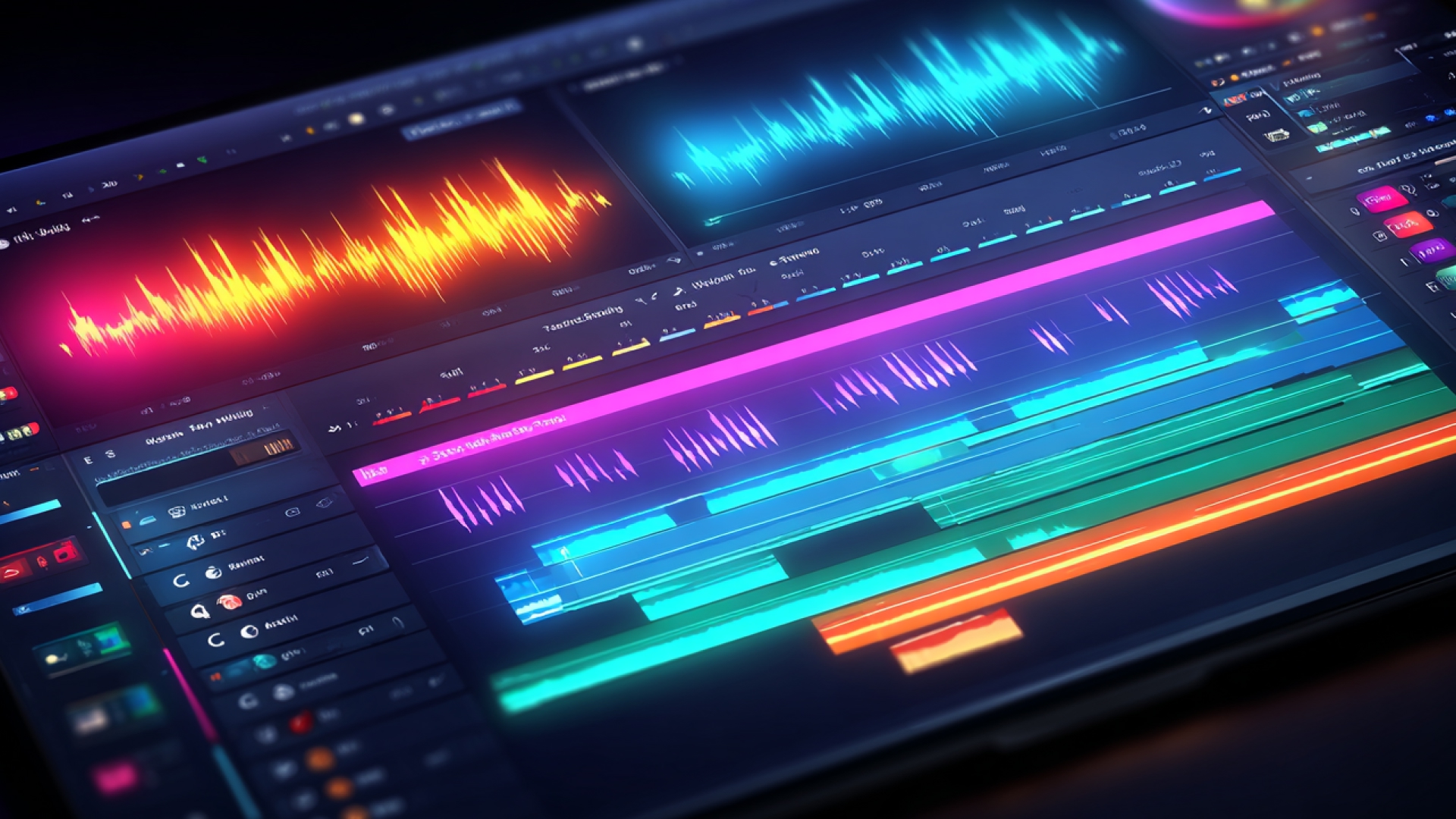
Move to the end of the clip and adjust the scale value. For subtle zoom in effects, increase scale to roughly 110 to 120 percent. For zoom out effects, reduce slightly from your starting value.
Intensity is determined by two factors:
- The difference between start and end scale
- The duration of the clip
A small scale increase over eight seconds feels calm and cinematic. The same increase over two seconds feels rushed. Larger jumps feel stylized and should be intentional.
Subtlety is usually more powerful than dramatic movement.
6. Apply Position Keyframes for the Pan
After adjusting scale, refine position at the end of the clip.
You can pan:
- Horizontally to reveal context
- Vertically to emphasize scale or detail
- Diagonally to create dynamic emphasis
The direction should support narrative logic. If the image contains two subjects, you might begin on one and gently move toward the other. If the image has layered detail, you might start wide and drift toward the emotional center.
Large, rapid shifts distract. Controlled movement guides.
7. Use Easing for Natural Motion
Raw linear motion moves at a constant speed from start to finish. That often feels mechanical.
Most editing platforms allow easing adjustments such as:
- Ease In
- Ease Out
- Bezier interpolation
Easing gradually accelerates or decelerates movement, mimicking natural camera motion. The difference is subtle but significant. Without easing, motion can feel robotic. With easing, it feels intentional and organic.
Professional work almost always uses easing.
8. Preview and Refine the Animation
Once keyframes are set, review playback carefully.
Look for:
- Unnatural acceleration
- Cropping that cuts off important details
- Overly aggressive zoom intensity
- Inconsistent pacing across multiple images
Small adjustments to timing, scale percentage, or framing often elevate the result dramatically.
The best ken burns effect is nearly invisible. Viewers should feel guided, not impressed by the animation itself.
9. Apply the Effect Across Montages and Slideshows
The technique becomes more powerful when applied consistently across a sequence of images.
In photo montages, consider:
- Alternating between zoom in and zoom out
- Varying pan direction subtly
- Keeping duration consistent across clips
You can copy and paste keyframes, then adjust scale or direction slightly to avoid repetition. Consistency builds rhythm. Variation prevents monotony.
This approach works especially well for:
- Travel videos
- Documentary storytelling
- Historical retrospectives
- Social media reels
- Tribute videos
- Comic to video adaptations
When integrated into narrative workflows or mobile first platforms, subtle motion like this transforms static visuals into story driven sequences.
The goal is not to animate everything. The goal is to animate intentionally. The ken burns effect is simple in mechanics. Its depth comes from how carefully you shape viewer attention over time.
Also read: Top 10 Text-to-Video AI Tools for Marketers 2026
Professional vs. Amateur Use of the Ken Burns Effect
The difference is restraint. The ken burns effect may be simple to apply, but execution determines whether it feels cinematic or distracting.
Here’s the practical breakdown:
Aspect | Amateur Use | Professional Use |
Zoom Intensity | Large, aggressive zooms | Small, deliberate zoom adjustments |
Motion Style | Sudden or purely linear movement | Smooth easing with natural acceleration and deceleration |
Pacing | Inconsistent timing between images | Consistent rhythm across sequences |
Purpose | Motion added to every image | Motion applied only when it serves the story |
Viewer Experience | Effect becomes noticeable | Attention stays on the subject, not the movement |
Professional execution prioritizes intention over decoration. The goal is guidance, not spectacle.
If viewers notice the effect itself, it is probably too strong. If they simply feel guided through the image, it is working. The ken burns effect is simple in execution. Its power lies in how intentionally you apply it.
When the Ken Burns Effect Earns Its Place?
The ken burns effect works best when motion improves engagement more than stillness would. It earns its place when it guides focus, controls pacing, or deepens meaning rather than simply adding movement.
Here’s where it works especially well:
- Documentary and Archival Storytelling: Slow, deliberate movement adds depth to historical photos and allows important details to unfold naturally over time.
- Educational or Explanatory Content: Subtle pans can highlight key sections of diagrams or visuals, reducing cognitive overload and directing attention with precision.
- Photo Montages and Tribute Videos: Gradual zooms create emotional progression instead of abrupt transitions, helping moments feel connected rather than stitched together.
- Social Media and Short Form Content: Gentle motion prevents still images from feeling frozen inside fast moving feeds, increasing retention without overwhelming viewers.
- Corporate and Presentation Videos: Controlled animation adds polish and professionalism without requiring complex graphics or heavy editing.
The goal is not constant animation. The goal is intentional motion. When movement serves the message, the ken burns effect becomes invisible and powerful at the same time.
Build Cinematic Image Sequences Faster With Frameo
If you’re learning how to use the ken burns effect, the real question is not whether subtle motion improves a video. It is how to apply it at scale without losing narrative control. That is where Frameo fits.
Frameo is built for story-first video creation, not random animation.
Here’s what it actually offers:
- Script-to-Video Structuring: Turn written scenes into organized visual sequences where still images, motion, and pacing follow a clear narrative arc.
- Controlled Ken Burns Motion: Apply subtle zooms and pans intentionally across scenes so movement feels cohesive rather than inconsistent.
- Storyboard-to-Output Workflow: Move from idea to structured visual storytelling inside one workspace, without juggling multiple editing tools.
- Visual Consistency Across Scenes: Maintain framing logic, character focus, and compositional balance throughout an entire sequence.
- Conversational Refinement: Adjust pacing, framing, and motion direction through guided edits instead of rebuilding timelines manually.
If you’re building photo-driven stories, documentaries, presentations, or social video sequences, Frameo helps you apply the ken burns effect with clarity and consistency, so motion strengthens your narrative instead of distracting from it.
Wrapping Up
Across modern video workflows, the ken burns effect is no longer just a stylistic choice; it is part of everyday editing decisions, presentation design, and digital storytelling strategy. What began as a documentary technique now shapes how still images function in social media videos, branded content, and educational media.
For editors, creators, and storytellers, the challenge is not whether to use the ken burns effect; it is how to apply it with intention. Subtle motion should guide attention, strengthen emotion, and support the story without overwhelming it.
Transform your still images into structured, cinematic sequences and start creating with Frameo today, where narrative flow, visual consistency, and creative control come together in a single AI-powered workspace.
FAQs
1. When should you use the ken burns effect in a video project?
The ken burns effect works best when you need to add subtle motion to still images without distracting from the story. It is especially effective in documentaries, photo montages, presentations, and social media videos where static frames may feel visually flat.
2. What makes the ken burns effect feel cinematic rather than distracting?
Intentional framing and subtle movement are key. Small zoom adjustments, controlled panning, and smooth easing help guide viewer attention naturally. Overly aggressive scaling or random motion can make the effect feel artificial.
3. How much zoom is ideal for the ken burns effect?
A zoom increase between 5 percent and 15 percent is typically effective. The goal is gradual progression, not dramatic movement. The longer the clip duration, the more subtle the zoom should be.
4. Can the ken burns effect improve viewer engagement?
Yes. Even minimal motion activates visual attention and keeps audiences focused longer than static images. When applied thoughtfully, it can enhance emotional impact and storytelling flow.
5. Do you need professional software to apply the ken burns effect?
No. Most editing tools support scale and position keyframes. Whether using advanced software or entry-level programs, the technique relies more on creative intention than complex tools.