
Product news
Introducing Frameo Skills: Bring your best process to every production
Frameo Skills let you save the production steps and creative guidelines behind your best work, then reuse them with your team on new projects.

Reusable workflows for films, series, explainers, walkthroughs and ads.
Getting a production right takes more than a good brief. Your team has to work out which process delivers the quality you need at a cost that makes sense.
Take ad cloning. You could
- Edit the original video with a new product,
- Rebuild it from its script, or
- Use both the script and keyframes to guide the new production.
After testing, you might find that the third approach gives you the best balance of quality and cost. That’s a production decision worth keeping. When another artist picks up a similar brief, they should be able to use the process, without having to go through the trial and error experience, all over again.
Save what works with Frameo Skills
Frameo Skills turn your creative process into a workflow the agent can follow and your team can reuse.
A Skill captures the production steps, questions to ask, creative guidelines and delivery requirements behind your work. For that ad-cloning workflow, it would guide the agent to extract the script and keyframes, then use them alongside new product references to build the video.
The agent handles tasks such as writing prompts and choosing models, while the Skill guides the process. Start with a Skill built by Frameo, create your own or save a workflow from an existing production.
Skills are available on every Frameo plan.
Start with a Skill built for the job
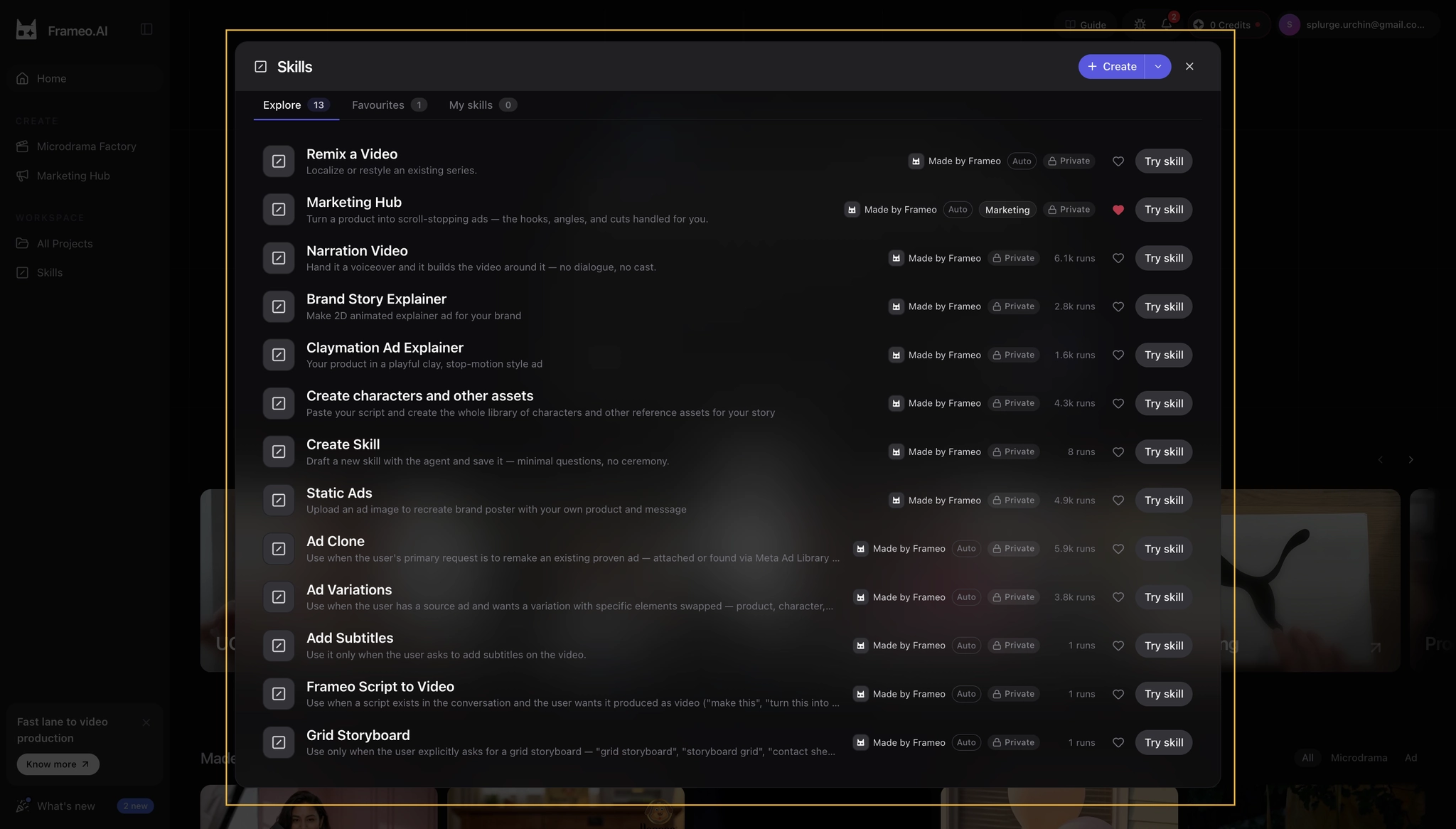
Frameo launches with 13 built-in Skills, available in every workspace. Here’s where to start based on the work you produce:
- TV, OTT and episodic content: Prepare character references with Create characters and other assets, then map scenes with Grid Storyboard.
- Movie MVPs: Develop a proof-of-concept film from an existing script with Frameo Script to Video.
- Product explainers: Use Brand Story Explainer for a 2D animated explainer ad, or Narration Video to build around a voiceover.
- Walkthrough videos: Use Create Skill to define a custom workflow around your space references, route and narration.
- Ads and branded content: Start with Marketing Hub, then use Ad Variations to change specific elements of an existing ad.
You’ll also find Remix a Video, Claymation Ad Explainer, Static Ads, Ad Clone and Add Subtitles in the Skills library.
3 ways to get started with Skills
Use an existing Skill
- Open Skills from the Frameo sidebar.
- In Explore, choose a Skill and select Try skill.
- Add your brief and relevant assets, then follow the agent’s questions to begin.
You can also access Skills from the agent’s message composer by typing:
/skill_nameCreate your own Skill
- Tell the agent what the Skill should do, including production steps, style guidelines and delivery requirements.
- Review its draft and request any changes.
- Ask the agent to save the Skill with a name you’ll recognize.
- Select it when you’re ready to use it with a new brief.
Turn an existing production into a Skill
- Open the chat for a project you’ve worked on.
- Tell the agent, “Turn this production into a Skill called [name].”
- Review the workflow it captures and ask for any changes before saving.
- Select your saved Skill to use the process on a new project.
Make your process available to the team
Keep a Skill private for your own work or share it within your organization. When another artist picks up a project, your established process is available to guide the session.
You can also work with a Frameo Forward Deployed Artist to turn your team’s production workflows into reusable Skills.
Try SkillsFrequently asked questions
Are Skills available on my plan?
Yes. Skills are available across all Frameo plans.
Can I use a Skill across different projects?
Yes. Select your saved Skill and provide the brief and assets for the new project. The Skill carries your established instructions into that project.
Does a Skill produce the same video each time?
No. A Skill provides a repeatable process. The brief, assets and creative direction shape each video, and your team reviews the output against its requirements.